Judging in HackUpon is built so that a judge's time goes on the work, not on the paperwork. You get a list of the entries you are asked to score, a rubric that says what each score means, and a place to write feedback the team will actually read. Agents can help you prepare, but they never score: every number in the results comes from a judge.
Step 1: Accept the invitation
An organizer adds you to the event's team on its Event team page with the role Judge. You are told in the app and by email.
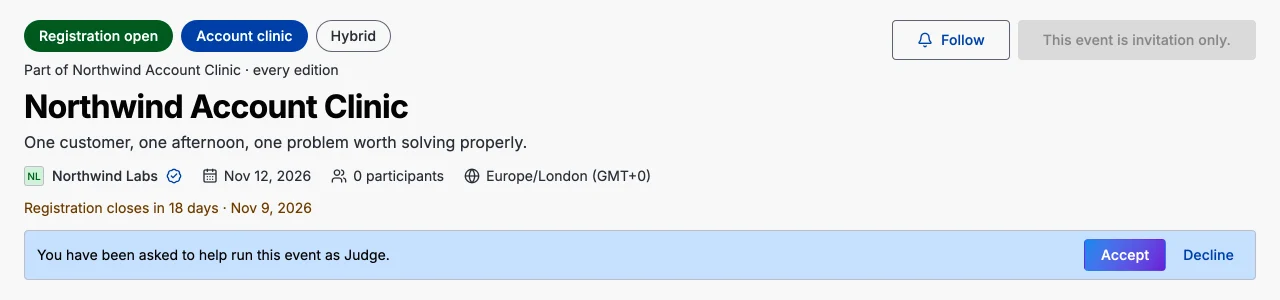
If you are a colleague in the organization running the event, you are on the team at once. If you come from outside it, open the event page: it says You have been asked to help run this event as Judge, with Accept and Decline. You cannot score until you accept.
An organizer may also place you at one site or on one challenge. That shows where you are, and a challenge's own round can then call on you alongside the event's other judges.
Step 2: Open your list
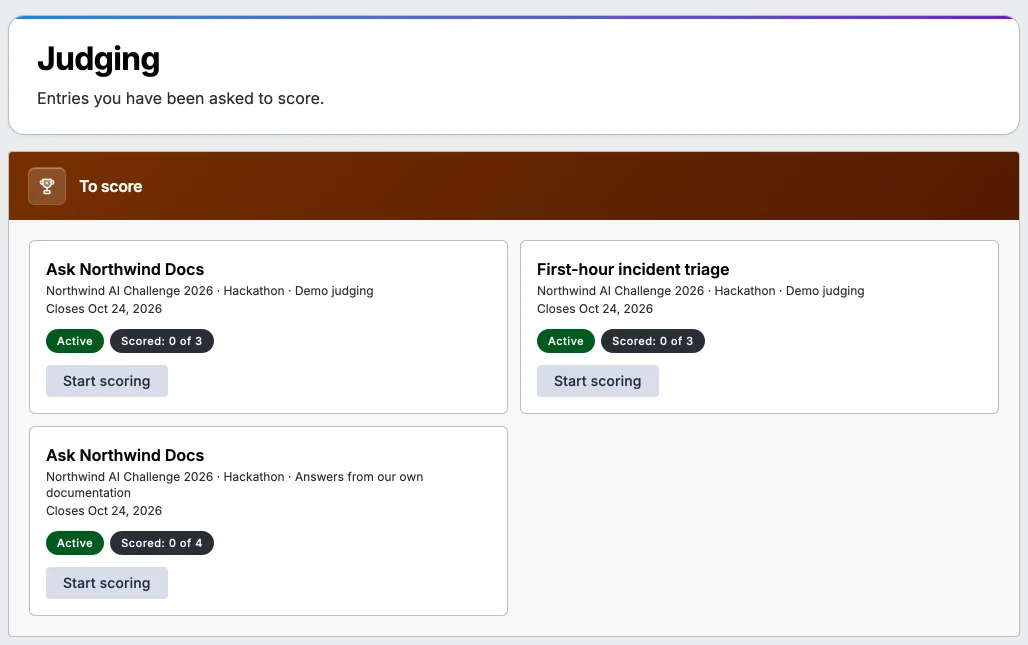
When you have something to score, Judging appears on your home page, and each entry waits under Waiting on you until its scorecard is complete. Your list shows every entry you have been assigned, across events:
- the team, the event, the phase and the round,
- when the round closes,
- how far you have got: Scored: 0 of 3, or Scored when you are done.
Start scoring opens an entry you have not touched. Review scores opens one you have finished, to read or change it while the round is open.
Step 3: Declare any conflict
HackUpon notices two conflicts on its own: being on the team, and belonging to the organization that fielded it. It flags them when you are assigned.
Everything else is something only people know: a former employer, a friendship, money, a team you mentored. Tell the organizer. They record it on the round with a reason and a note, and it then shows on your list and above your scorecard, so you can see exactly what was recorded against your name.
A conflict is a note, not a block. It does not remove you or discount your score. The organizer decides what to do, which may be to stand you down from that entry while keeping the record. See How judging works for their side.
Step 4: Read the work, and the briefing
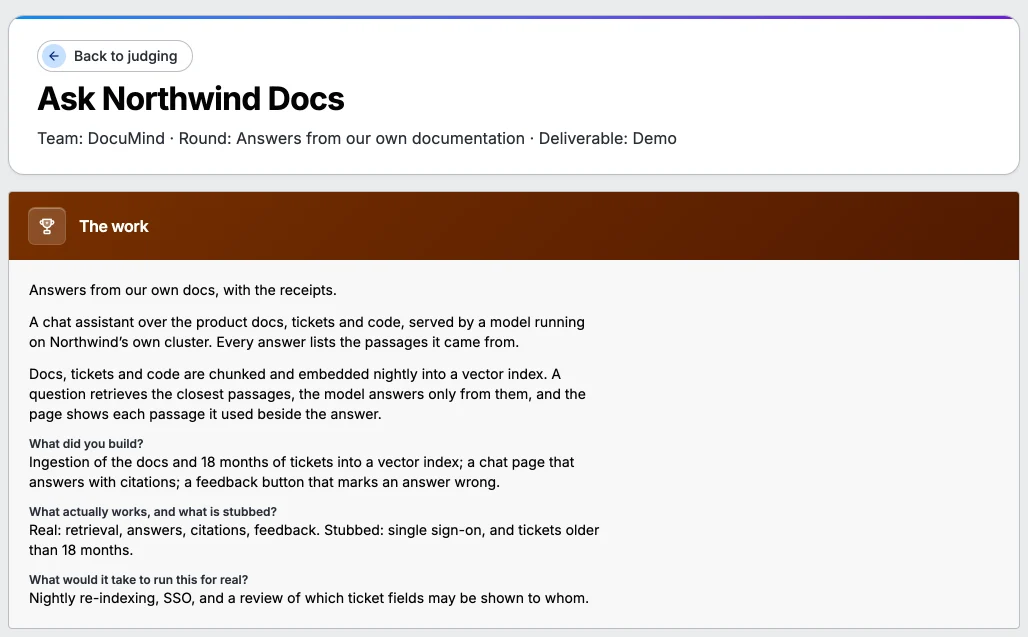
Open an entry and read The work first: the tagline, summary, problem, solution and impact, and the team's answers to the phase's questions. Attachments open in the page, and Read the code opens the repository as it was read when the team handed in. An entry handed in after the deadline is marked Late.
If the organizers switched on briefings, the Judge Assistant has written one for this entry: what the entry claims, what its material actually shows, and questions worth putting to the team. It is written once and is the same for every judge on the entry. It contains no score, so it tells you where to look, not what to think.
You do not see the automatic checks run on the entry. Those are for the organizers.
Step 5: Score one criterion at a time
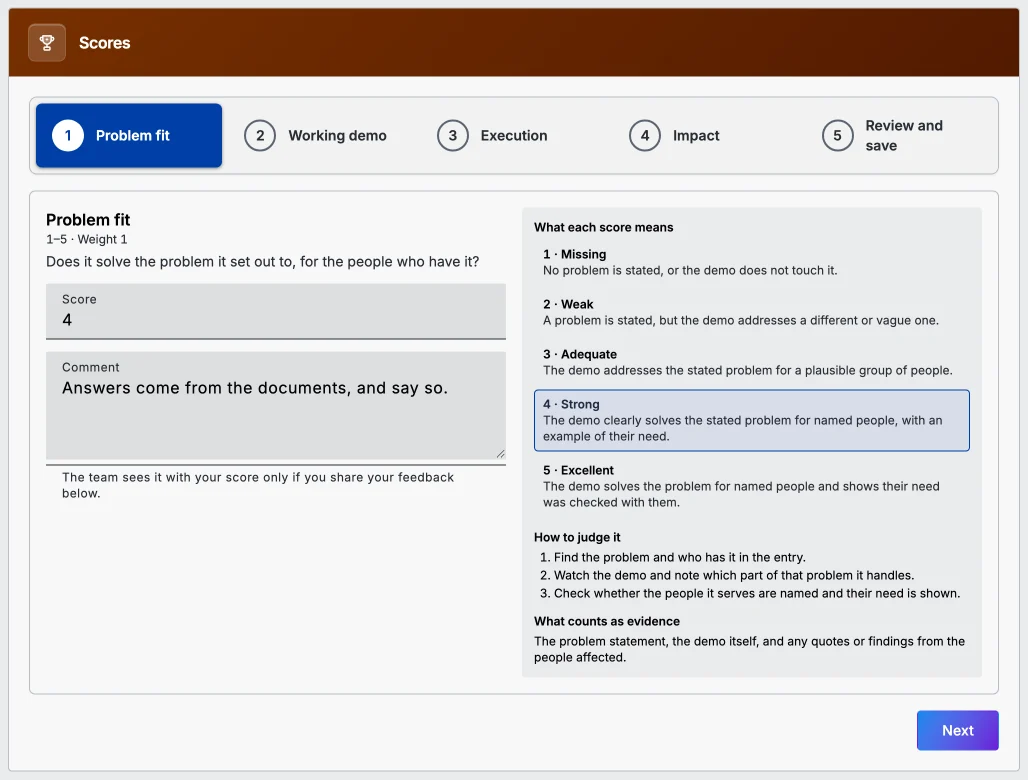
Scores walks you through the rubric one criterion per step. Each step shows the criterion's range, its weight and what it is about, and beside it:
- What each score means: what a 1, a 3 or a 5 looks like for this criterion. The level that matches your score is highlighted as you type.
- How to judge it: the steps to follow.
- What counts as evidence: what to look for in the entry.
Give the score and, if you like, a short comment on why. A criterion without levels says so, and asks for your own judgment against its description.
Step 6: Review, then save
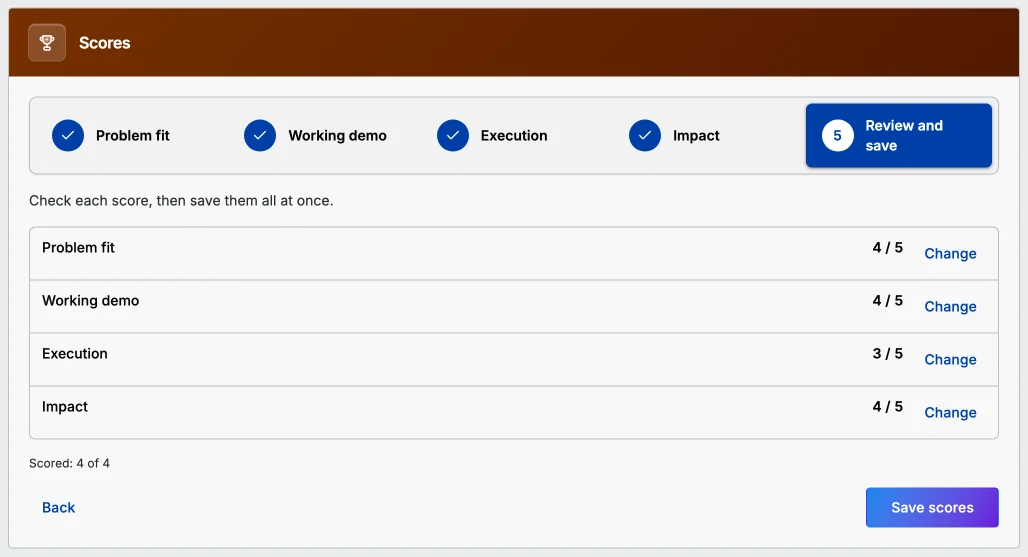
The last step, Review and save, lists every criterion with your score and comment. Change takes you back to any of them. Save scores saves them all at once.
A scorecard counts only when every criterion has a score, and a complete scorecard earns you reputation on your profile. While the round is open you can come back from Review scores and change anything. Once the organizers lock the round, your scores are final.
Step 7: Write feedback the team can use
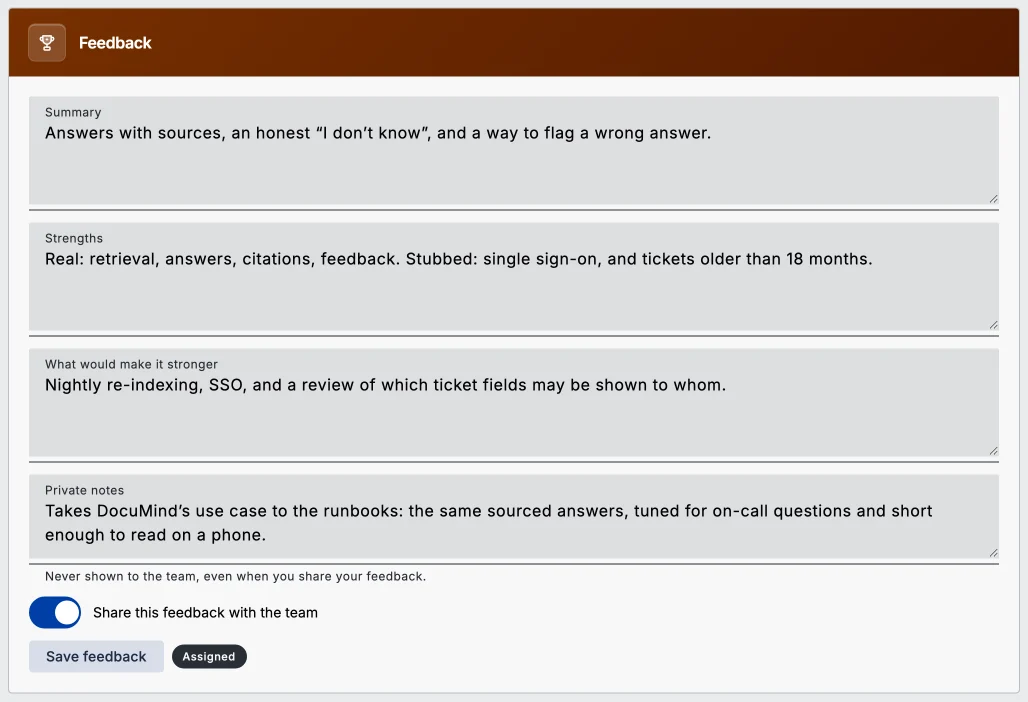
Under Feedback, write what you would tell the team in person:
- Summary: the work in a sentence or two.
- Strengths: what to keep.
- What would make it stronger: what to change.
- Private notes: for yourself. They are never shown to anybody, organizers included.
Share this feedback with the team decides whether the team sees the first three, and your comments beside your scores. Feedback can be written only while the round is open and is shown to the team only once it is locked, so a team never reads something you are still changing.
Step 8: See what happens with your scores
When judging closes, HackUpon turns the scores into standings. Each criterion is normalized, weighted and averaged across judges on a scale of 100, and only judges who scored every criterion count. The organizers may drop the highest and lowest judge totals, take a snapshot to freeze the standings, and publish it.
Publishing is what shows each team its own result: its place, its score, the average on each criterion and each judge's scores. Judges are numbered, never named. Your shared feedback sits beside your scores.
What comes next
For the organizer's side of the same round, read How judging works, and for publishing results and winners, How an event ends. To see where your feedback lands, read How a team takes part in an event.