Mentors in HackUpon offer their time, and teams come to them. There is no assignment step: you say when you are free, teams book the pieces they need, and you decide which requests to take. This guide covers the whole cycle, from the invitation to the reputation a held session earns.
Step 1: Join the event's team
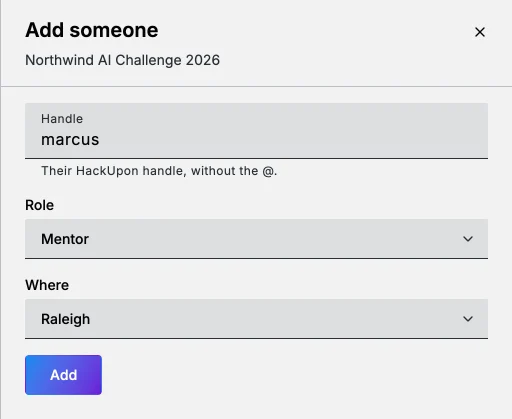
An organizer adds you on the event's Event team page, by your HackUpon handle, with the role Mentor. You are told in the app and by email.
If you belong to the organization running the event, you are on the team at once. If you come from outside it, the event page shows You have been asked to help run this event as Mentor, with Accept and Decline. Nothing is granted until you accept.
The organizer can also say Where: the whole event, one site or one challenge. It grants nothing extra and takes nothing away: it shows where you are, on the staff list and on your invitation, and your office hours open at that site.
Good to know: mentors can be added while an event is upcoming or running, and not once it has finished. See How an organizer runs an event for the organizer's side.
Step 2: Offer office hours
On the event page, open What is on offer under Office hours. As a mentor you see Offer hours, which opens a short form:
- When: the day and the hours you are free.
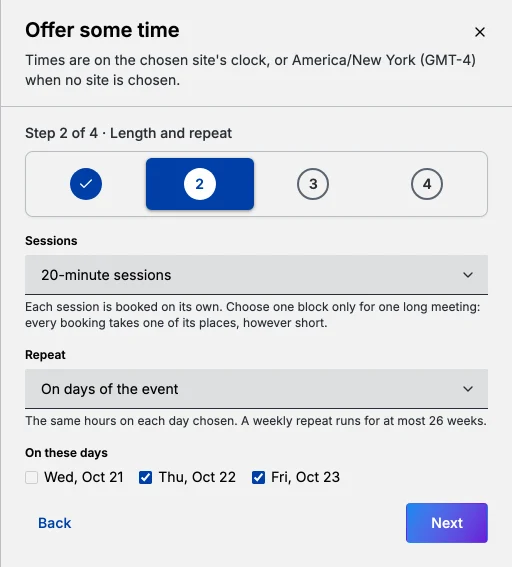
- Length and repeat: cut the block into 15, 20, 30, 45 or 60-minute sessions, or leave it as one block that teams book part of. Repeat the same hours On days of the event you tick, or Every week on chosen weekdays until a date, for up to 26 weeks.
Days already past are skipped, and a slip cannot fill the board: one offer makes at most 60 sessions.
Step 3: Say where, and for how many
The third step settles the practical details:
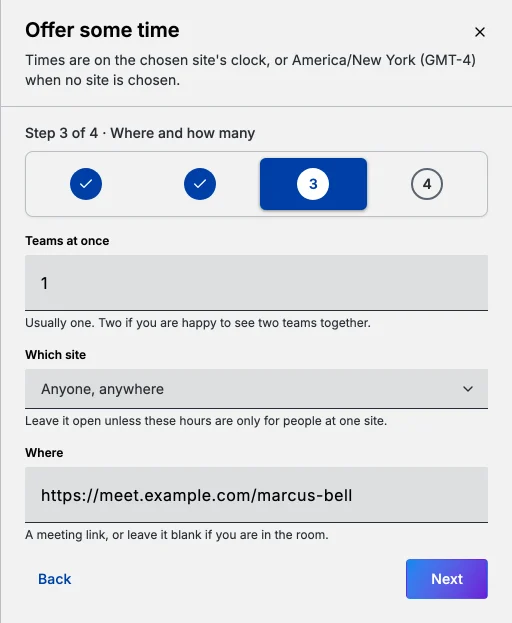
- Teams at once: usually one. Two if you are happy to see two teams together.
- Which site: leave it as Anyone, anywhere, or tie the hours to one venue.
- Where: a meeting link, or leave it blank if you are in the room.
Time zones are handled for you. Your hours are on the chosen site's clock, or the event's when no site is chosen. Everyone who reads the board sees that time with their own beside it, so a team in Bengaluru and a mentor in San Francisco agree on the same twenty minutes.
Review shows the whole offer before you press Offer it.
Step 4: See the requests come in
A team books a session by choosing its minutes inside your hours and saying what it wants to talk about, on behalf of the team or just the person booking. You are told in the app and by email, and the request waits under Waiting on you on your home page.
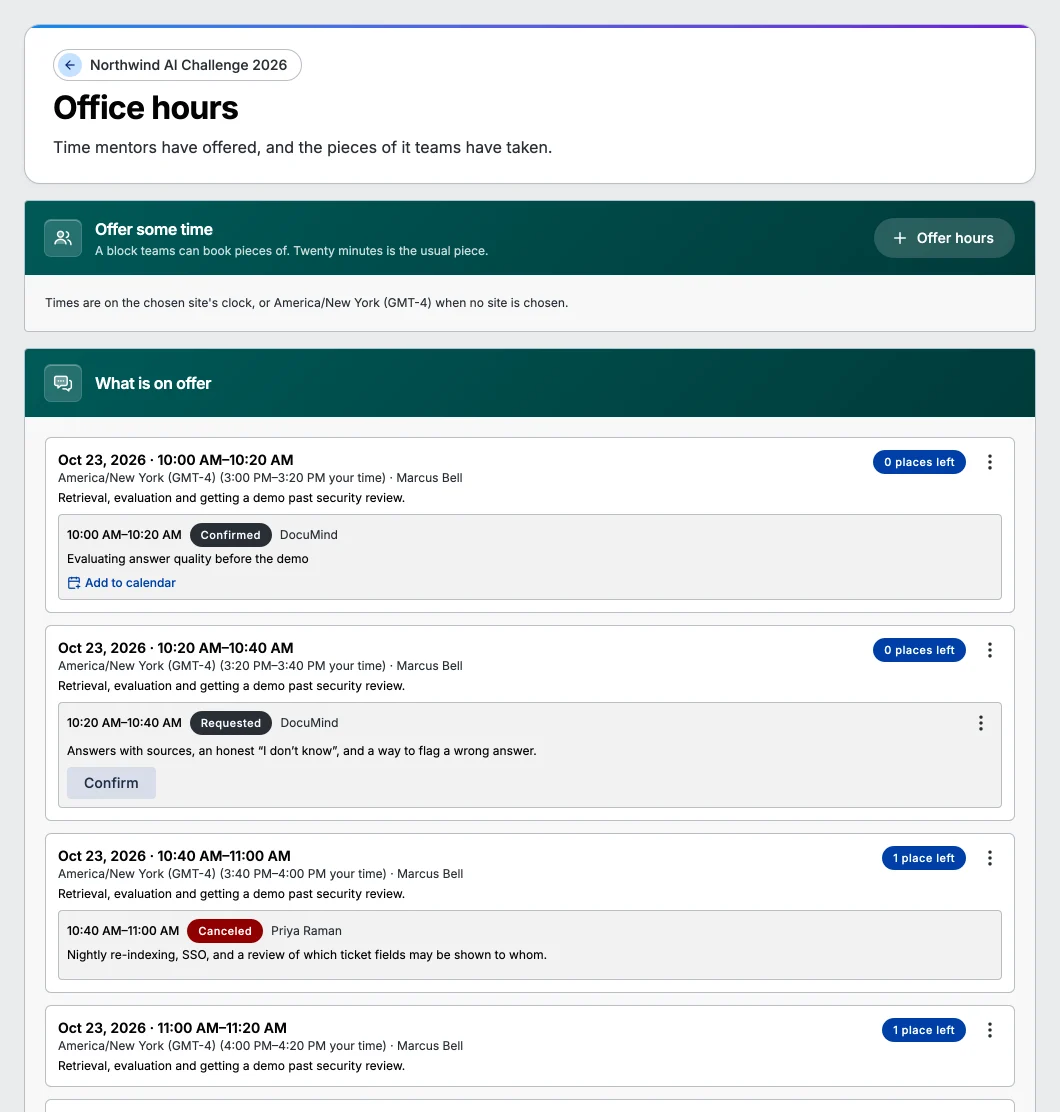
The office hours page shows each of your blocks, how many places are left, and every request with its topic and team, so you can prepare before you say yes.
Step 5: Confirm or decline
Press Confirm on a request to accept it, or choose Decline from its menu. Either way the person who booked is told. A confirmed session shows Add to calendar, which gives you a calendar file with the time, the topic, the team and the meeting link.
Plans change on both sides. A team can cancel its booking, which frees the place again. You can cancel a whole block from its menu while it stands, and anyone booked into it is told.
If you are removed from the event's team, your office hours go with you, so teams are never left booking time that nobody will keep.
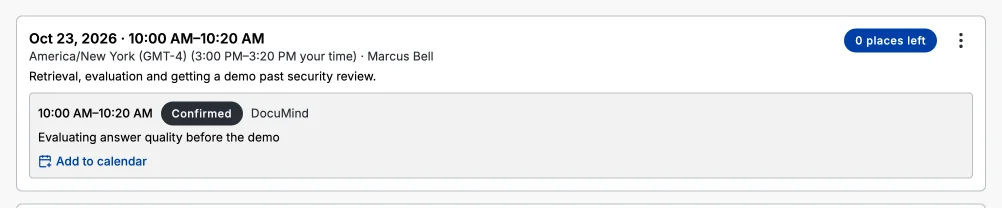
Step 6: Hold the session, then say how it went
Hold the session where you said: in the room or on your meeting link. When its time is over, either you or the team that booked it can mark it It was held or It didn't happen.
The first answer decides, and each side is told when the other answers. If the other side disagrees, they can say so once, with a reason. The answer turns over, both answers stay on the booking, and that settles it. There is no back and forth to referee afterwards.
A session marked as held is what earns you recognition, so it is worth the click.
Step 7: Know what you can see of a team
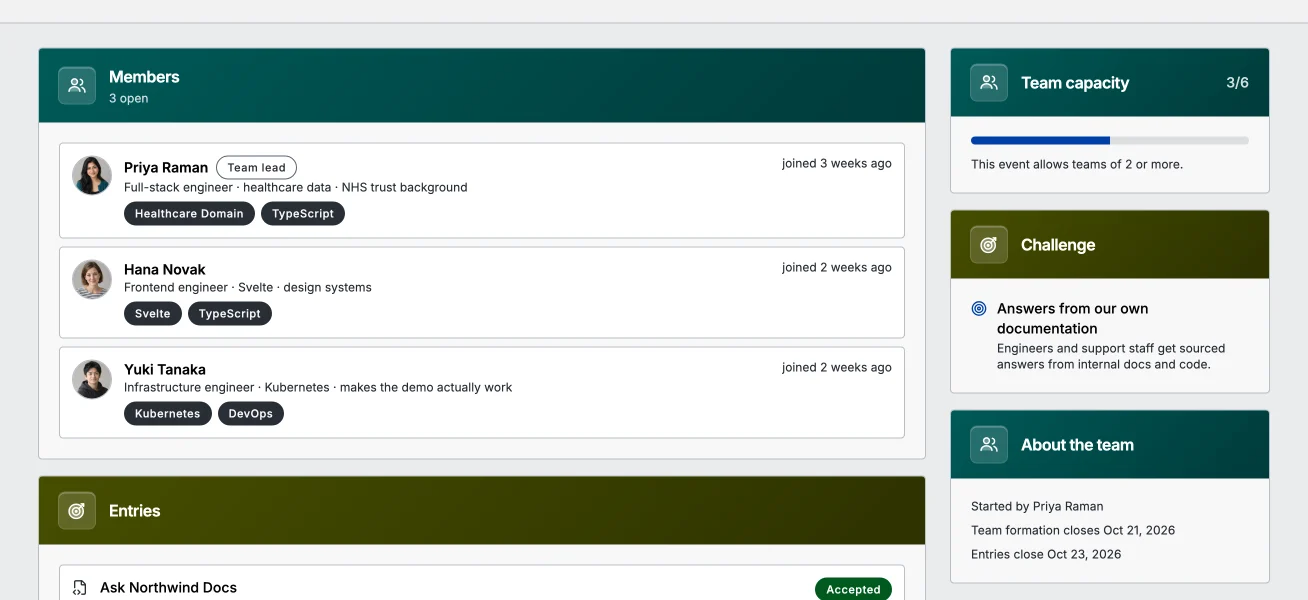
As a mentor you can open each team's page at the event: its members and their skills, its challenge, and the entries it has handed in with their status. Members' profiles show their experience and what they are open to, which helps you understand a team before a session.
The team's workspace, its channels and its draft entries stay private to the team. What a team wants from you arrives in the booking's topic, in its own words.
Step 8: Build your profile and get credit
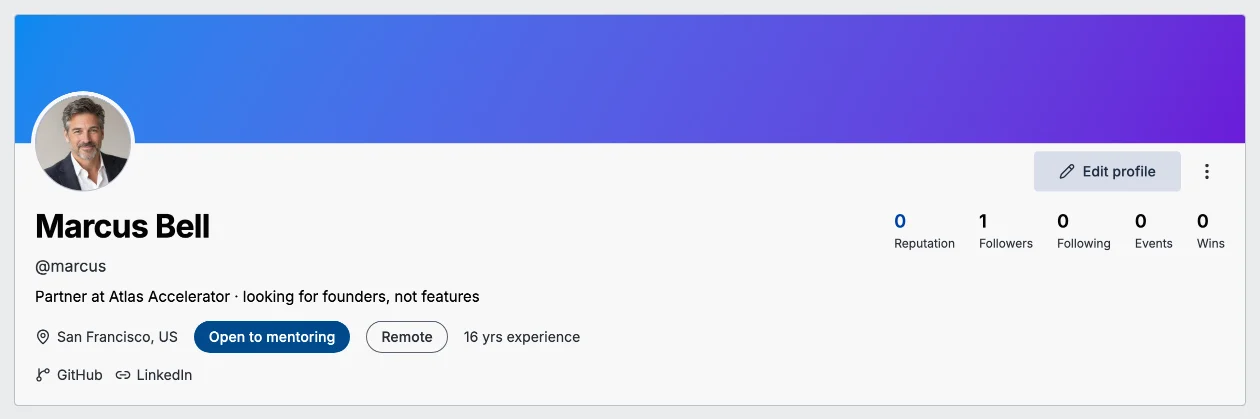
Your profile tells teams and organizers who you are. Under Settings, set your headline, skills and experience, mark yourself as open to mentoring, and list Mentor among your preferred roles. Teams can read about you before they book.
Each session marked as held earns you reputation in the Mentoring category, recorded with the session's topic and the event it came from. If an answer is later turned over to It didn't happen, the points are taken back, and the record says so.
What comes next
Teams' side of a booking is in How a team takes part in an event. If you also judge, read How a judge works with an event. Organizers who want to plan mentoring into an event should start with How an organizer runs an event.