This guide follows a team through an event in HackUpon, from the first click on Events to the showcase at the end. It is for participants and team leads. By the end you will know where each part of the work happens, what HackUpon does for you along the way, and where the organizers and judges come in.
Step 1: Find an event and register
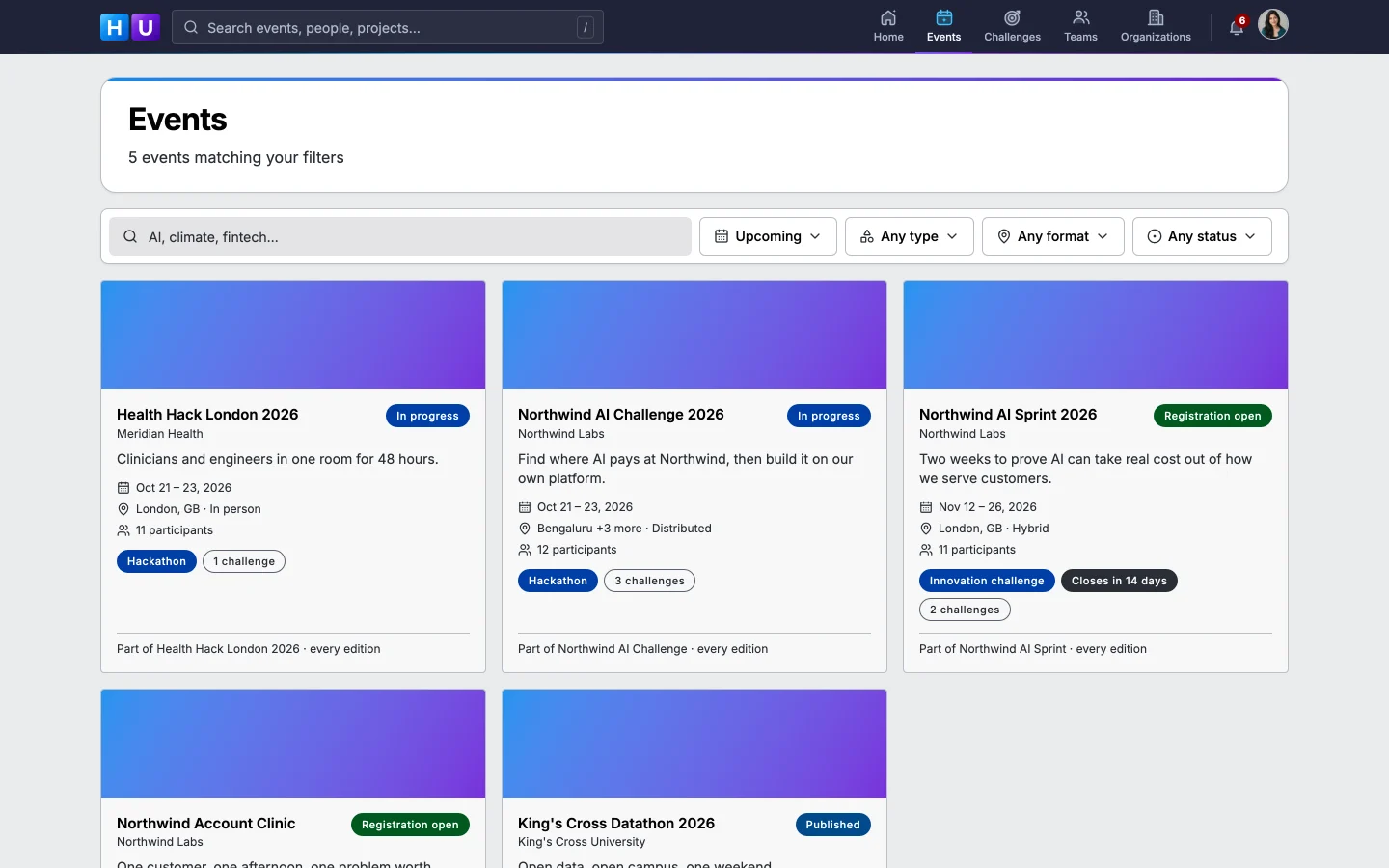
Open Events in the top bar. Each card shows who runs the event, its dates, where it happens and whether registration is open; the filters narrow the list. Challenges lets you start from a problem instead, and Projects shows what teams have handed in before. Follow an event you are not ready for, and you will hear when registration opens and when results are out.
On the event page, press Register. The form asks how you want to take part, which location you are joining if there are several, and any accessibility or dietary needs. Some events add Application questions, and an event with rules or a code of conduct asks you to accept them here.
An open event lets you in at once. An event that takes applications puts you in the organizers' queue, and you are told when they decide.
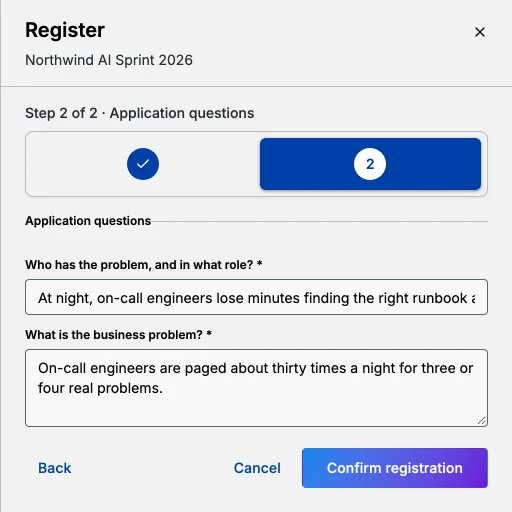
Good to know: if organizers ask an agent to screen applications, it reads only your answers to the questions marked for screening, never your name or photo, and a person makes every decision.
Step 2: Post an idea, or back one
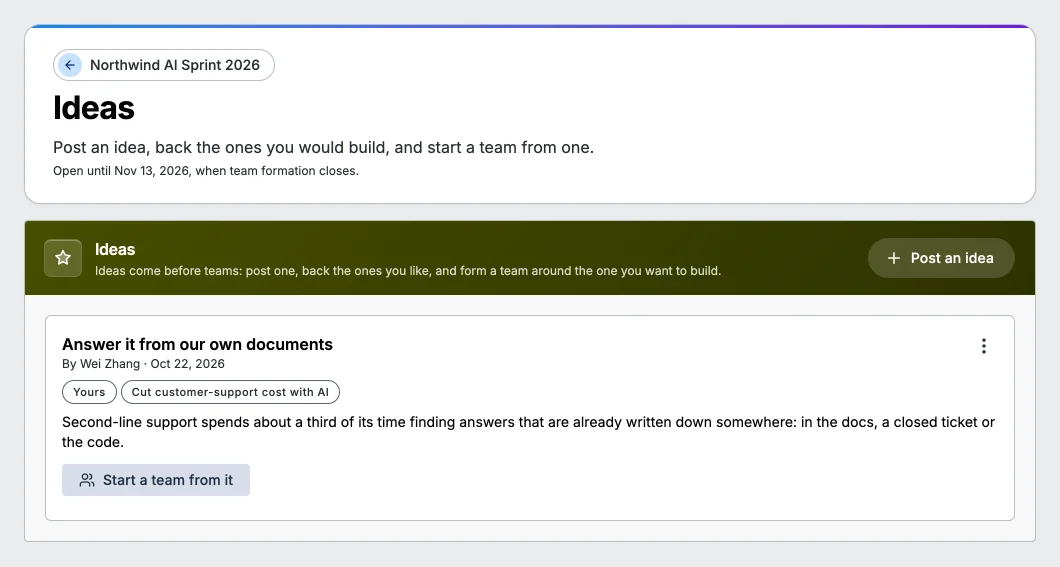
Ideas come before teams. On the event page, Open the ideas board to see what people want to build. Post an idea takes a title, a few sentences on what you would build and why, and, if you like, the challenge it answers.
Read the others and press Back this idea on the ones you would work on. Each idea shows who backs it, so you can see where a team is already gathering. When an idea is yours, Start a team from it turns it into a team in one step.
The board stays open until team formation closes. In an event with several phases, a later phase can let newcomers start a team on one of the previous phase's entries from this same page.
Step 3: Form your team
There are three ways into a team.
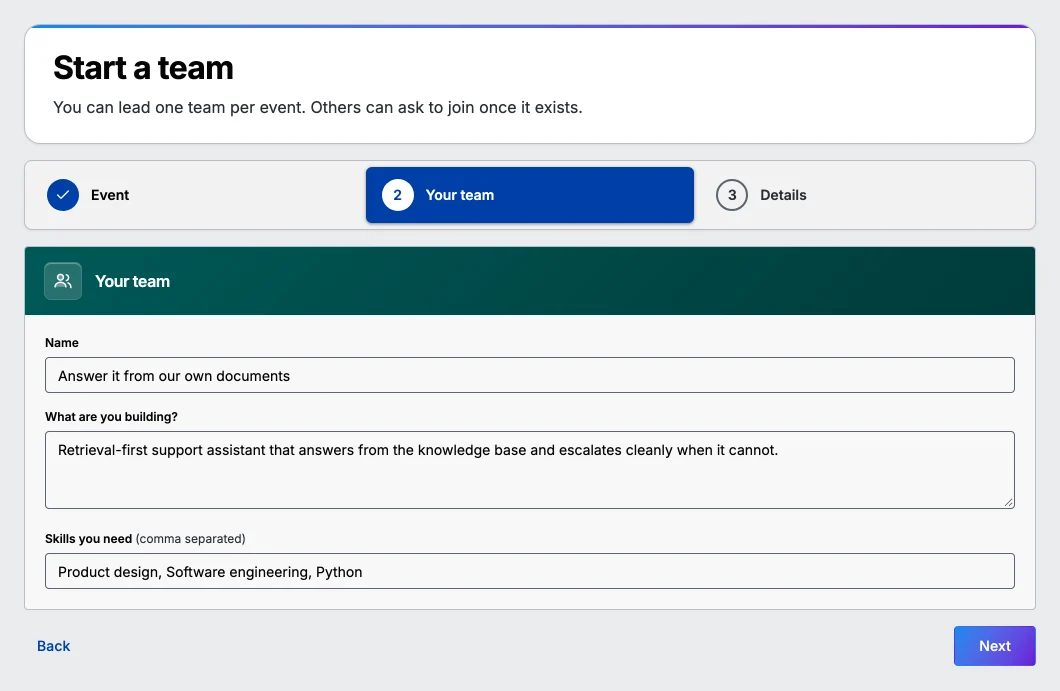
- Start one. On Teams, press Start a team. Choose the event, name the team, say what you are building and which skills you need, then choose a track or challenge if you already know it. You become the team lead.
- Join one. The Teams list shows teams that are forming and what they are looking for. Ask to join sends your application to the lead, who accepts or declines it. A lead can also invite you by email.
- Let teams find you. On the event's Find a team page, say what you bring and what you are looking for, and switch on Open to suggestions from teams. Leads can then suggest their team to you. Where the organizers use it, Find me a team asks an agent for up to three teams that are missing what you offer, and an organizer checks each suggestion before it reaches you.
You must be registered first, and you can be on one team per event.
Step 4: Follow your team's next step
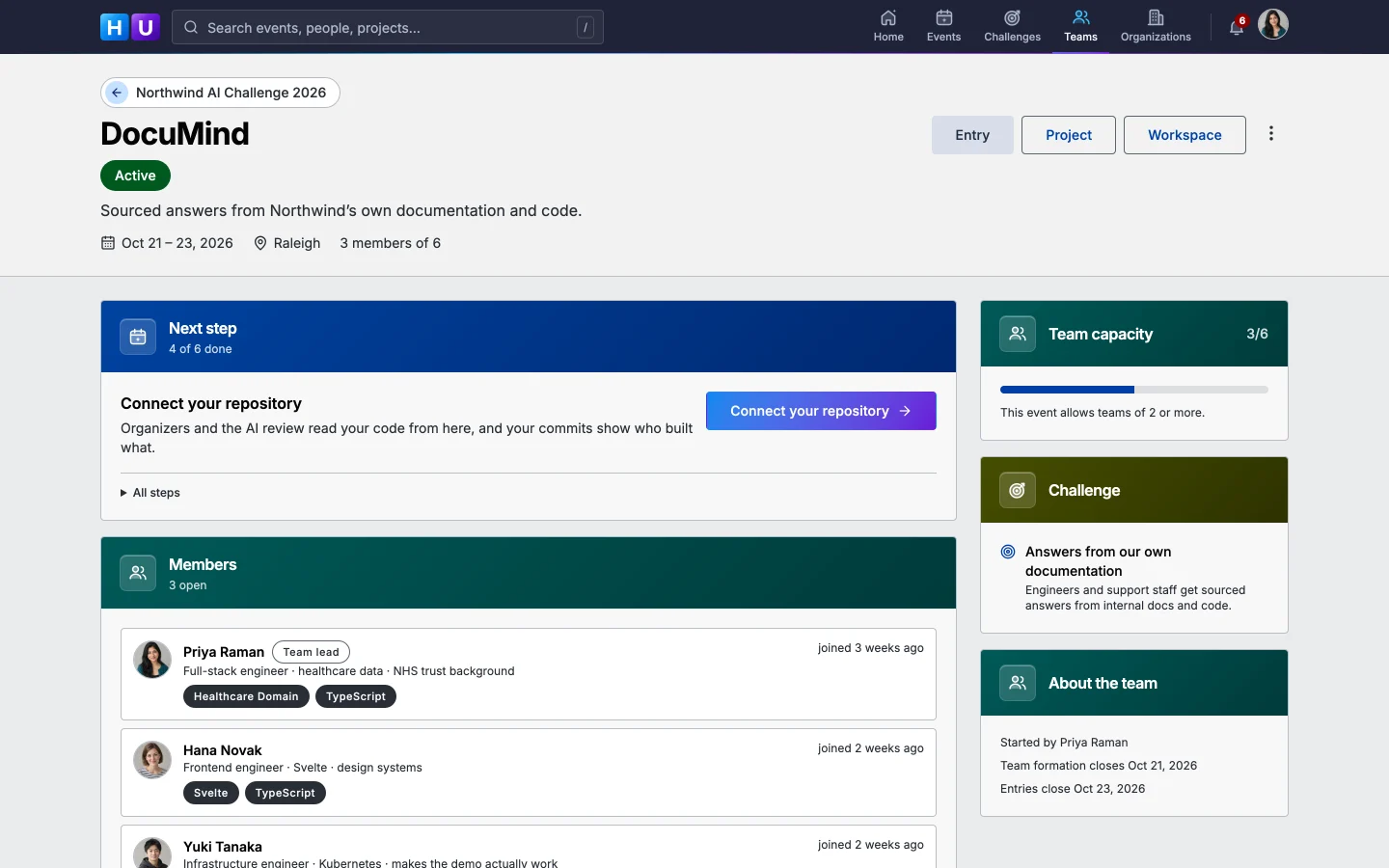
Your team page is home base. It lists the members and their skills, the team's challenge, its capacity, its entries and the key dates.
At the top, Next step tells you what to do now, with a button that takes you there: find teammates, set up the workspace, connect your repository, hand in each phase's entry, then see the results. All steps shows the whole list and what is done. The same steps appear under Waiting on you on your home page, soonest deadline first, along with team invitations and applications that need an answer.
The lead manages the team from here: accepting applications, inviting people, switching recruiting on or off and changing the team's settings.
Step 5: Work together in the workspace
Open Workspace from the team page. It is private to the people on the team.
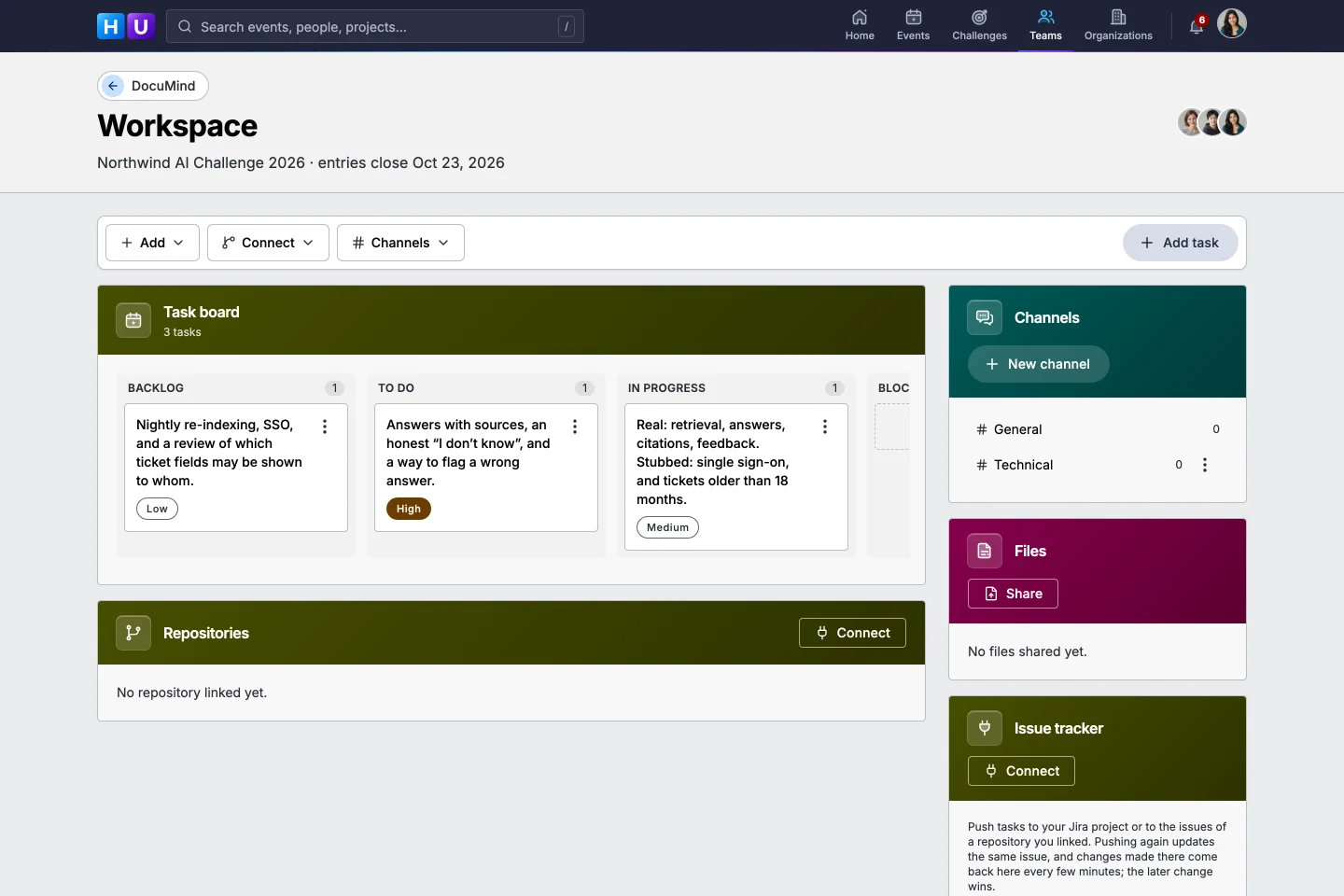
- Task board: anyone on the team adds tasks and moves them through backlog, to do, in progress, blocked, review and done. Assign notifies whoever you add.
- Channels: every workspace starts with General. Add more for separate topics, post messages and files, and react to messages.
- Files: share files with the whole team, optionally against a task.
- Issue tracker: if your team lives in Jira or in a repository's issues, connect it. Tasks you push there stay in step, and changes made there come back every few minutes.
Step 6: Connect your repository
In the workspace, Connect under Repositories links the code you are writing. Choose the host (GitHub, GitLab or Bitbucket), give the repository's address, and paste a read-only token made for that one repository. Where the organizers have set up the HackUpon GitHub app, you can install it and pick the repository instead.
HackUpon only ever reads. Each reading shows the commits, authors, dates and languages, and Read the code opens the files it kept. Your commits show who built what, as long as the email addresses you commit with are on your account. Add them under Settings.
When you hand in, the entry form offers the repositories you linked, and submitting reads the chosen one again for the judges.
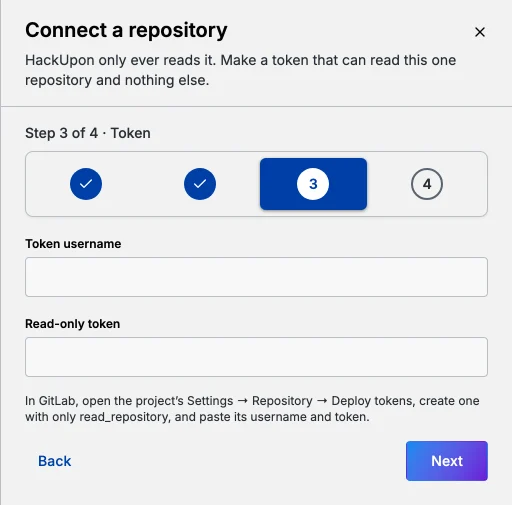
Good to know: unlinking deletes the token, and when the event is archived every token is deleted.
Step 7: Write and hand in your entry
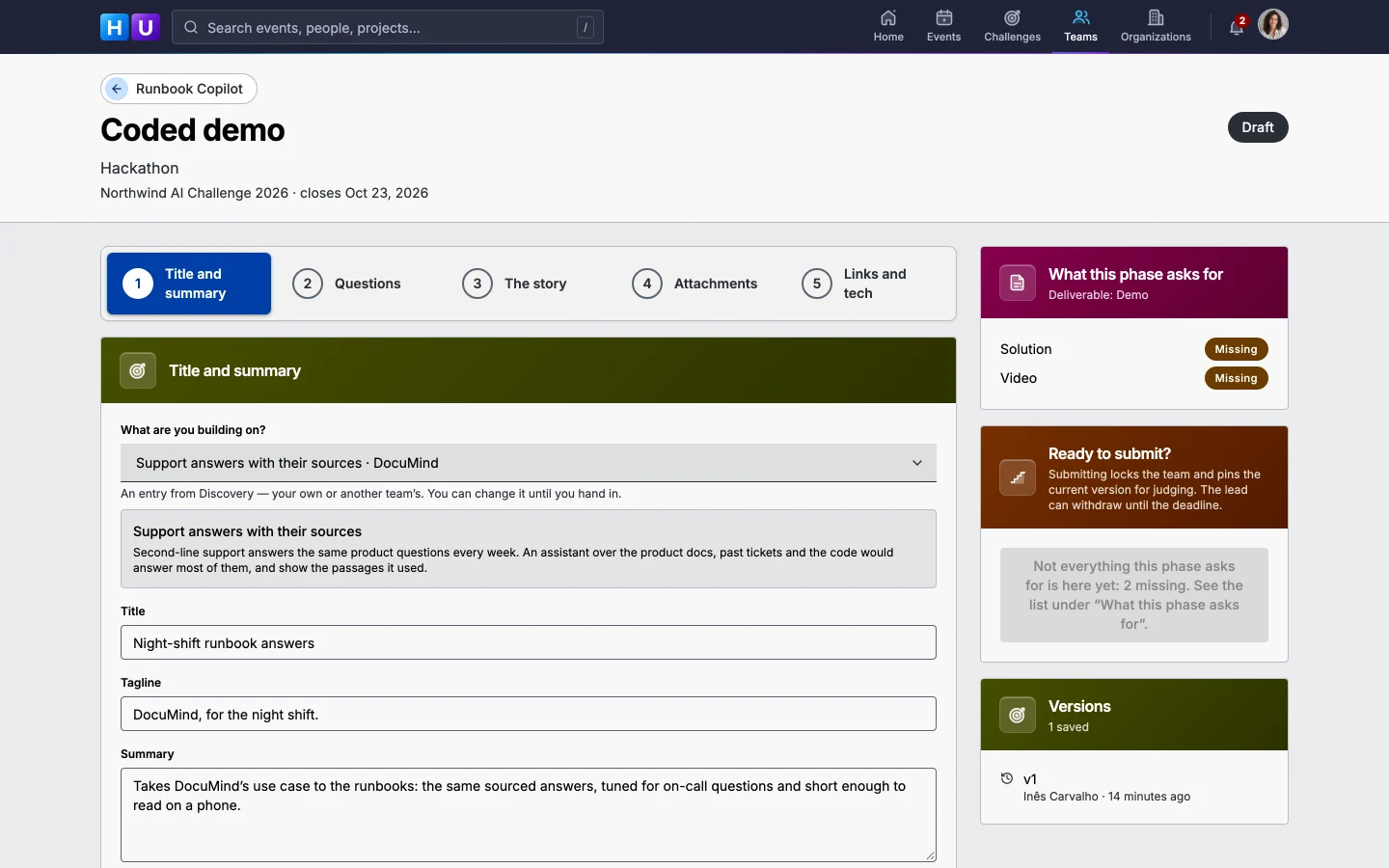
Each phase asks for its own entry: a use case in a discovery phase, a demo in a hackathon. Open Entry on the team page and pick the phase. The form is a stepper: Title and summary, Questions, The story, Attachments, Links and tech. Anyone on the team can edit it, and every save keeps a version.
- What are you building on? In a later phase, choose the previous phase's entry you are building on: your own or another team's, who are told and credited. You can change your choice until you hand in.
- Attachments: add a deck, a video, a document or a dataset. Files are carried forward with each new version.
- What this stage asks for lists what the phase requires, and the submit button says what is still missing.
The lead presses Submit, which pins the current version for judging and can withdraw it until the deadline. If the phase runs automatic checks, What the checks found lists anything to fix, such as a repository nobody can open, while there is still time.
Step 8: Book time with a mentor
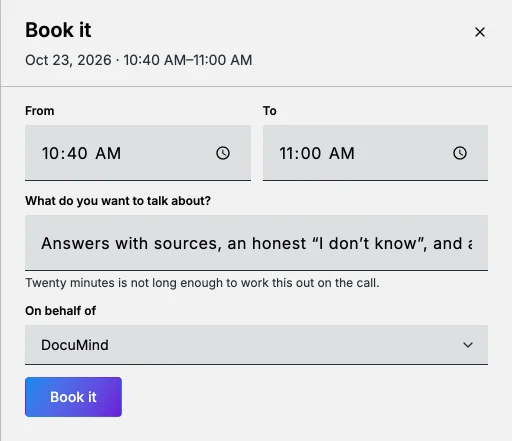
On the event page, What is on offer under Office hours lists the time mentors have offered, on the venue's clock with your own time beside it. Press Book it on a slot, choose the minutes you want, and say what you want to talk about, so the mentor can prepare. Choose your team under On behalf of, so the mentor sees which team is coming.
The mentor is told at once and confirms or declines. A confirmed session offers Add to calendar. Afterwards, either side can say whether it was held. See How a mentor works with an event for the mentor's side.
Step 9: Read your feedback, results and the showcase
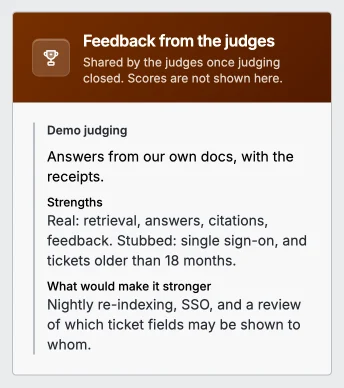
Once a judging round is locked, the judges' feedback appears on your entry's page: a summary, strengths, and what would make the work stronger, from each judge who chose to share it. Private notes stay with the judge.
When the organizers publish a round's results, a Results section appears too: your place, your score, the average on each criterion and each judge's scores. Judges are numbered, never named. You see your own breakdown, never another team's.
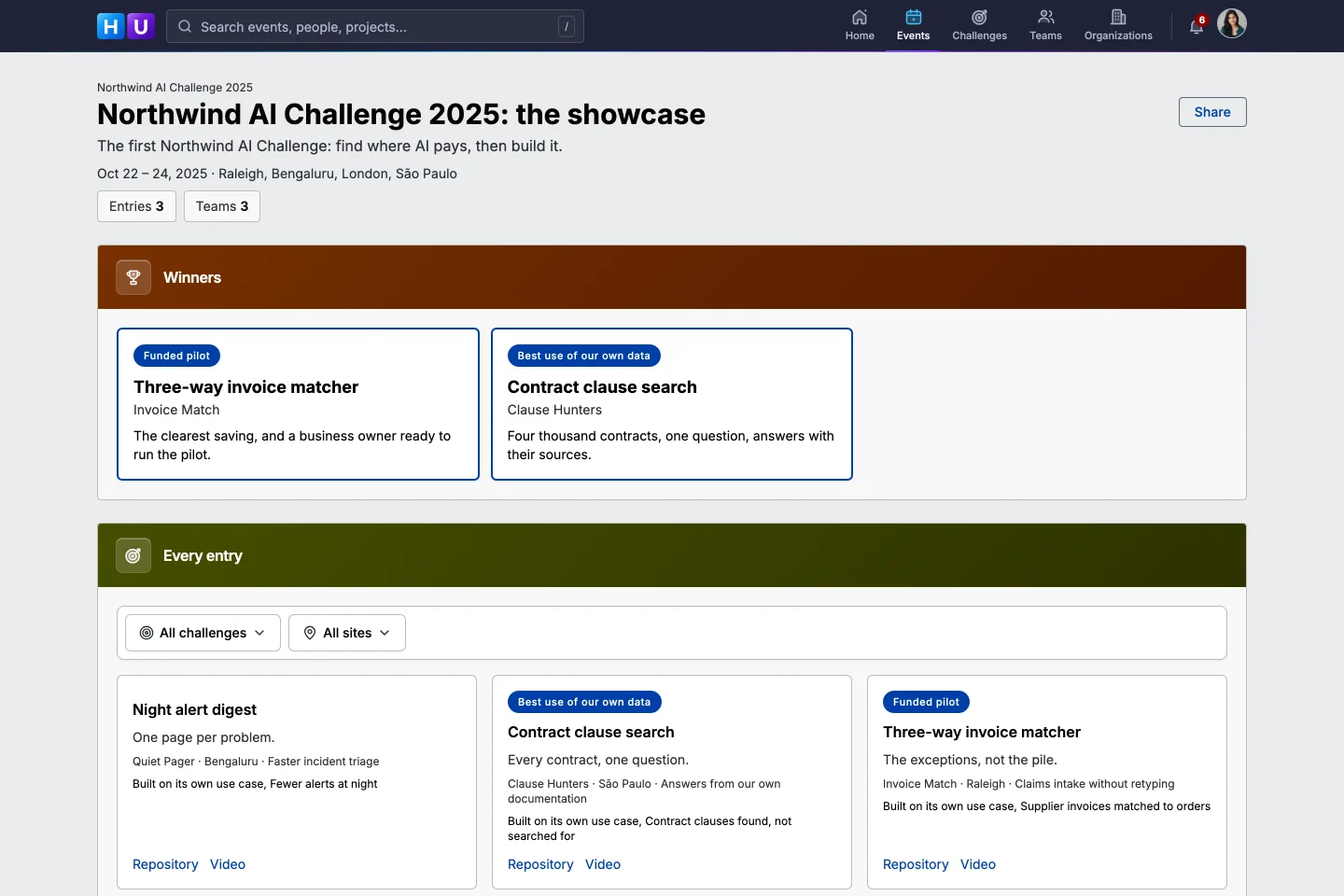
At the end, the organizers can publish a showcase: the winners first, then every entry with what it built on, filterable by challenge and site. You decide what your public profile says about the events you took part in.
What comes next
For the people on the other side of the event, see How a mentor works with an event and How a judge works with an event. To see how organizers set up the phases you hand in to, read How a round runs, and for scoring and results, How judging works.