In HackUpon, judging belongs to a phase. Each judged phase has one or more rounds, and each round has a panel of judges and a rubric to score against. This guide walks through the organizer's side, from adding a round to freezing the standings. Results always come from the judges' own scores. Agents help judges prepare, but they never score.
Step 1: Add a round
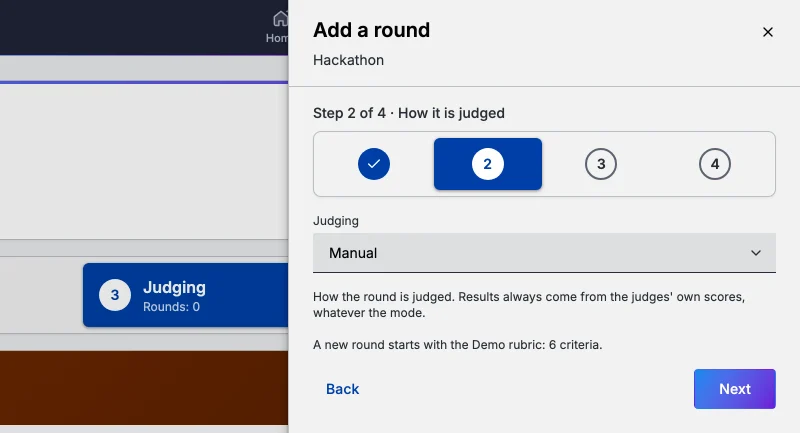
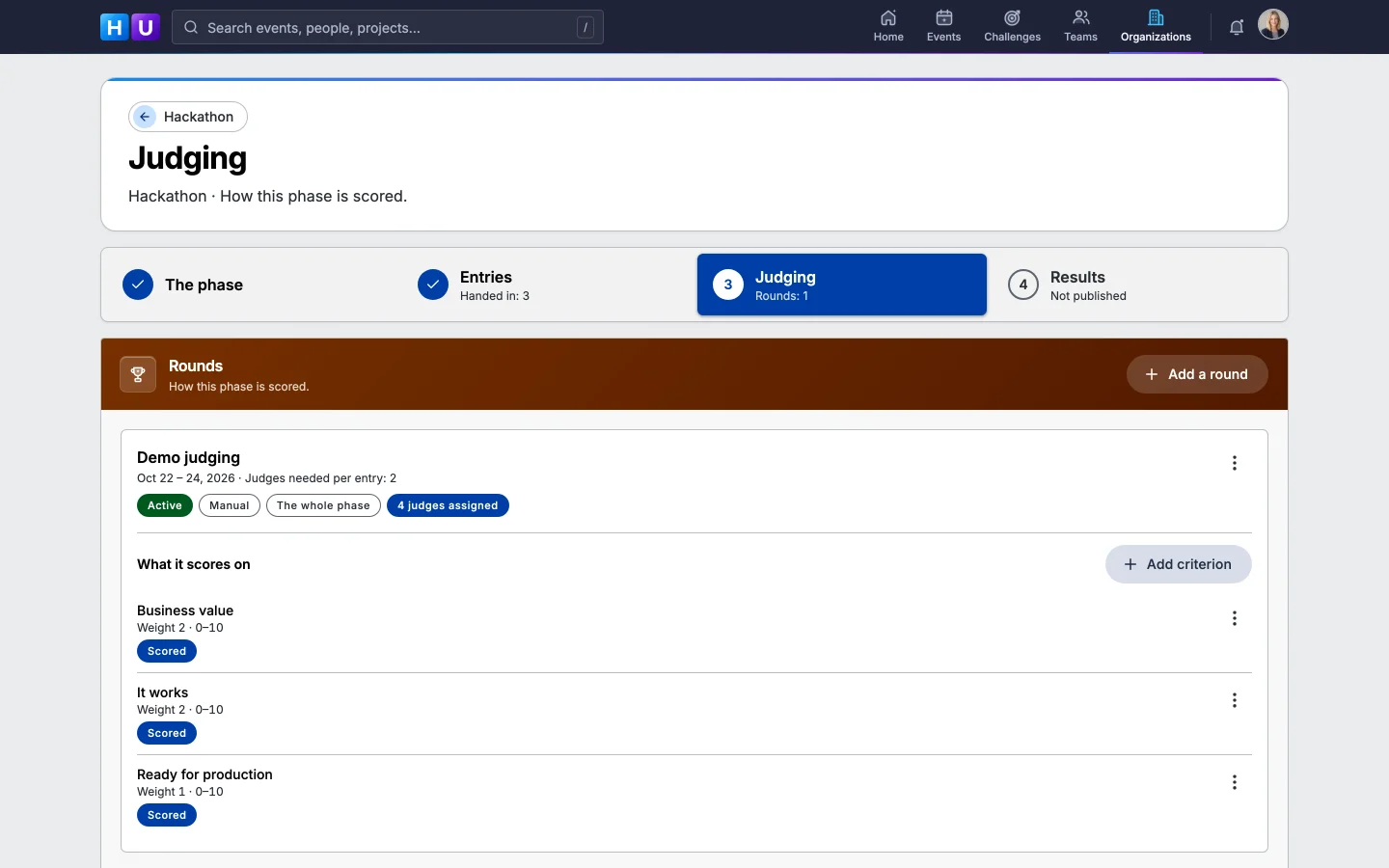
On the phase's settings, switch on Judged. Then open Judging in the phase's strip and press Add a round. The form takes four short steps:
- Name and challenge: name the round. If the phase has several challenges, a round can judge one challenge or The whole phase.
- How it is judged: the judging mode. Manual means people only. Some editions add a mode where an agent works alongside the judges, but there is no mode in which an agent decides.
- When it opens and closes: the round's window, in the event's time zone.
- Judges needed: how many judges must score each entry before it counts.
A phase can hold more than one round. For example, a first round per challenge can be followed by a final.
Step 2: Start from a real rubric
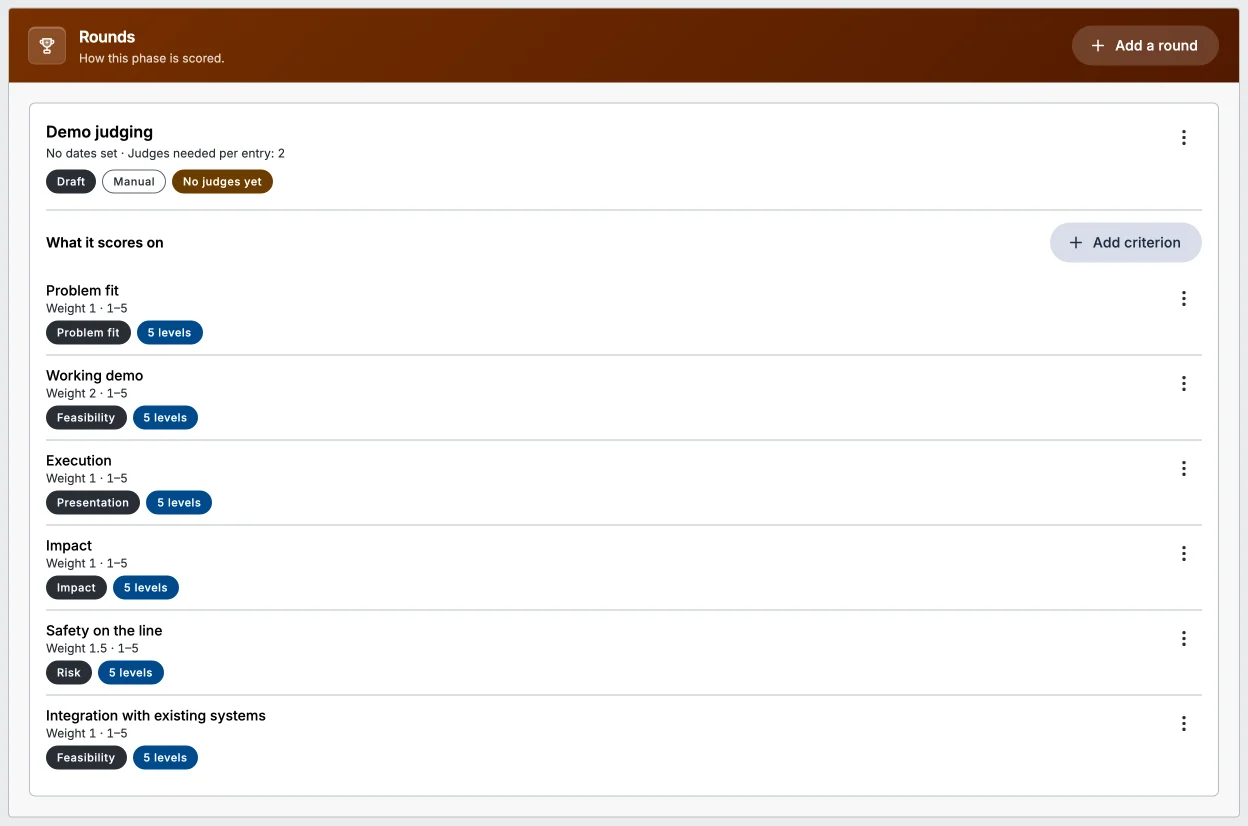
A new round does not start empty. It copies the rubric that belongs to the phase's deliverable type, so a demo is judged on demo criteria and a slide deck on deck criteria.
Each criterion arrives with:
- a weight,
- a dimension, such as problem fit, feasibility, impact or risk, so that reports can compare across rubrics,
- levels that describe what each score means,
- steps telling the judge how to assess it,
- a note on what counts as evidence.
Rubric overlays then tailor it to your field. When the event has a domain such as manufacturing, healthcare or defense, that domain's overlay can add criteria (for example, "Safety on the line"), change weights, or lock a criterion that must not be weakened.
Step 3: Make the rubric yours
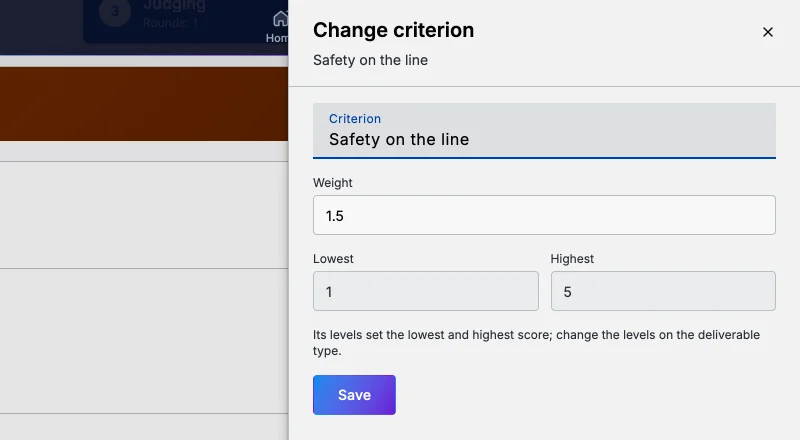
Adjust the copied rubric to fit your event. Add criterion adds your own, and Change criterion renames or reweights one. A criterion with levels takes its lowest and highest score from those levels. A criterion you type in yourself uses a score range you set.
Two rules protect fairness:
- A criterion marked Locked by the rubric keeps its weight and cannot be removed. Rubrics from the platform or a domain use locks for rules an organization should not be able to soften.
- Once judges have scored, you cannot narrow a criterion's range below the scores already given. You can widen it instead.
In the round's settings, you can also choose to Drop the highest score and Drop the lowest score when totals are averaged.
Step 4: Assign the judges
Judges join from the event's Event team page. Each judge accepts the role on the event page before they appear here. Then open the round from the Judging page.
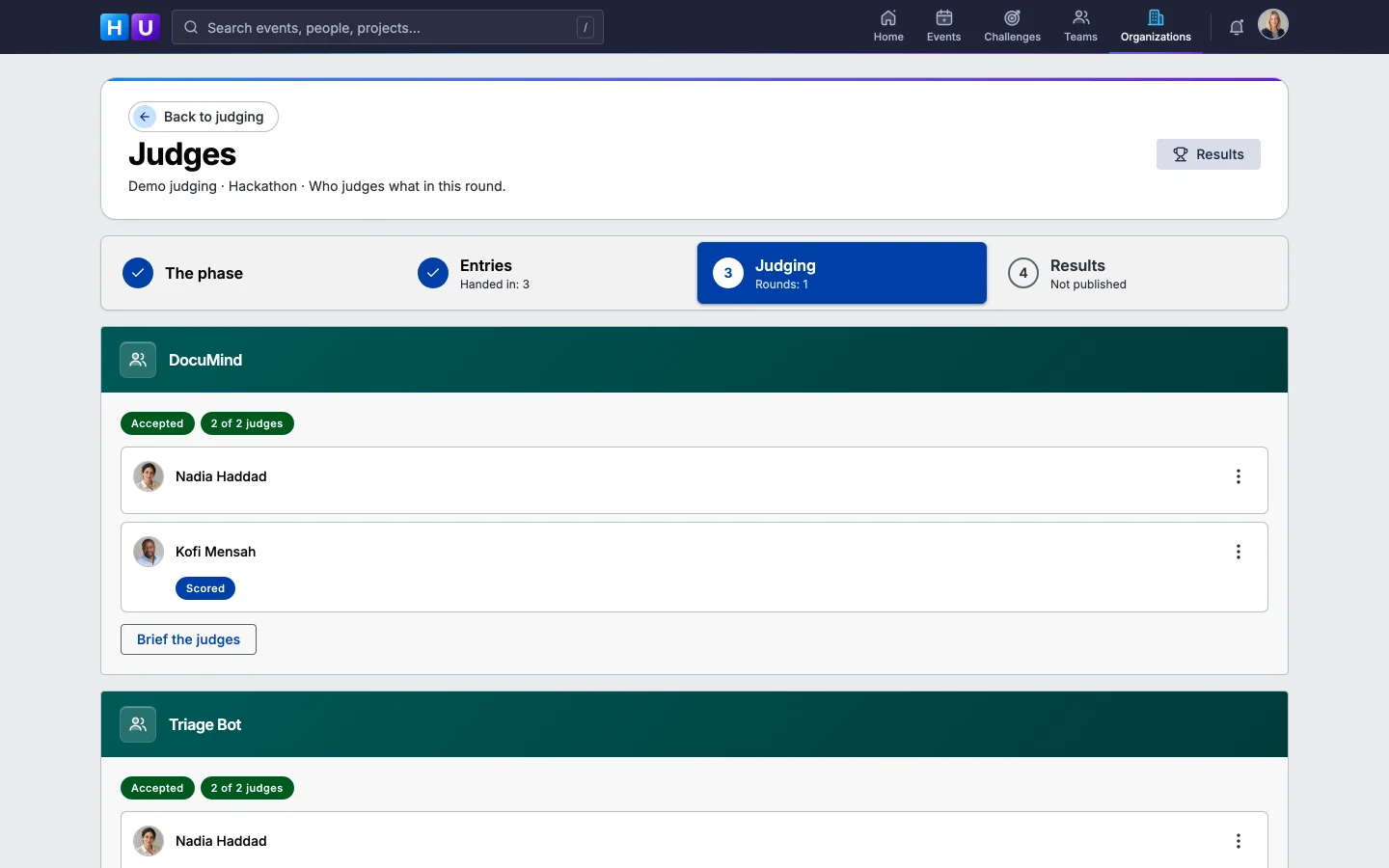
Each accepted entry is listed with its panel and a progress badge, such as 2 of 2 judges, measured against the number of judges you asked for. Pick a judge from the list under an entry and press Assign.
Each judge's menu offers Recuse, Declare a conflict and, until they have scored, Remove. After a judge has scored, recusal is the only way to take them off a panel. Their scores stay on the record but stop counting.
Step 5: Handle conflicts in the open
Conflicts are shown to you, not hidden from you. When HackUpon can tell that a judge is conflicted with an entry, for example because they belong to the same organization or the same team, the list of judges says so before you assign them: Would be flagged: and the reason.
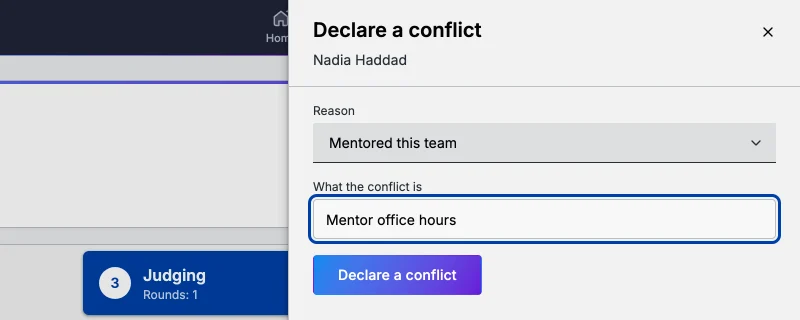
You can also Declare a conflict with a reason (mentored this team, former colleague, financial interest and others) and a note. Each conflict shows whether it was Detected by the platform or Declared by a person.
A conflict never blocks an assignment and never discounts a score on its own. At a client event, everyone may know everyone. HackUpon shows you the conflict and leaves the decision to you: keep the judge, or recuse them.
Step 6: Brief the judges with the Judge Assistant
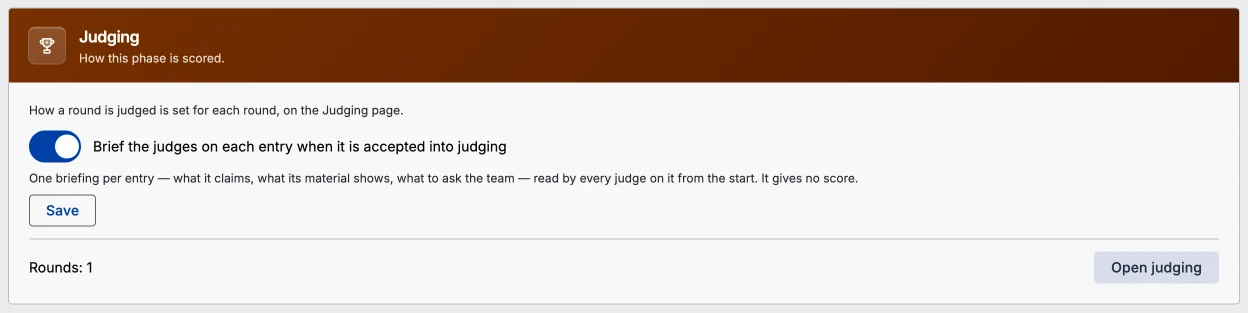
On the phase page, under Judging, turn on Brief the judges on each entry when it is accepted into judging. From then on, each entry you accept gets one briefing from the Judge Assistant. The briefing covers what the entry claims, what its material actually shows, and questions to ask the team. Every judge on the entry reads the same briefing, above their scorecard. It gives no score.
On the round's page, each entry shows whether it is Briefed, waiting or failed. You can read the briefing yourself, and Re-brief replaces it for everyone. Re-briefing is also how an entry accepted before you turned the switch on gets its first briefing.
Step 7: Open the round and let judges score
Set the round's status to Active in Change settings. Judges can score only while the round is active. Each judge sees their entries on Home and scores every criterion against its levels, steps and evidence. They can also write feedback (a summary, strengths, what would make it stronger and private notes) and choose whether to share it with the team. The judge's guide shows their side.
When a round first leaves draft, HackUpon stores its rubric as it stands at that moment: the criteria, their levels and the overlays they came from. Every score is read against the rubric that was in force when it was given, even if the rubric changes later.
Good to know: a round that is Locked or Completed fixes its panel and stops scores from changing. It also releases the shared feedback to the teams.
Step 8: Read the results, then freeze them
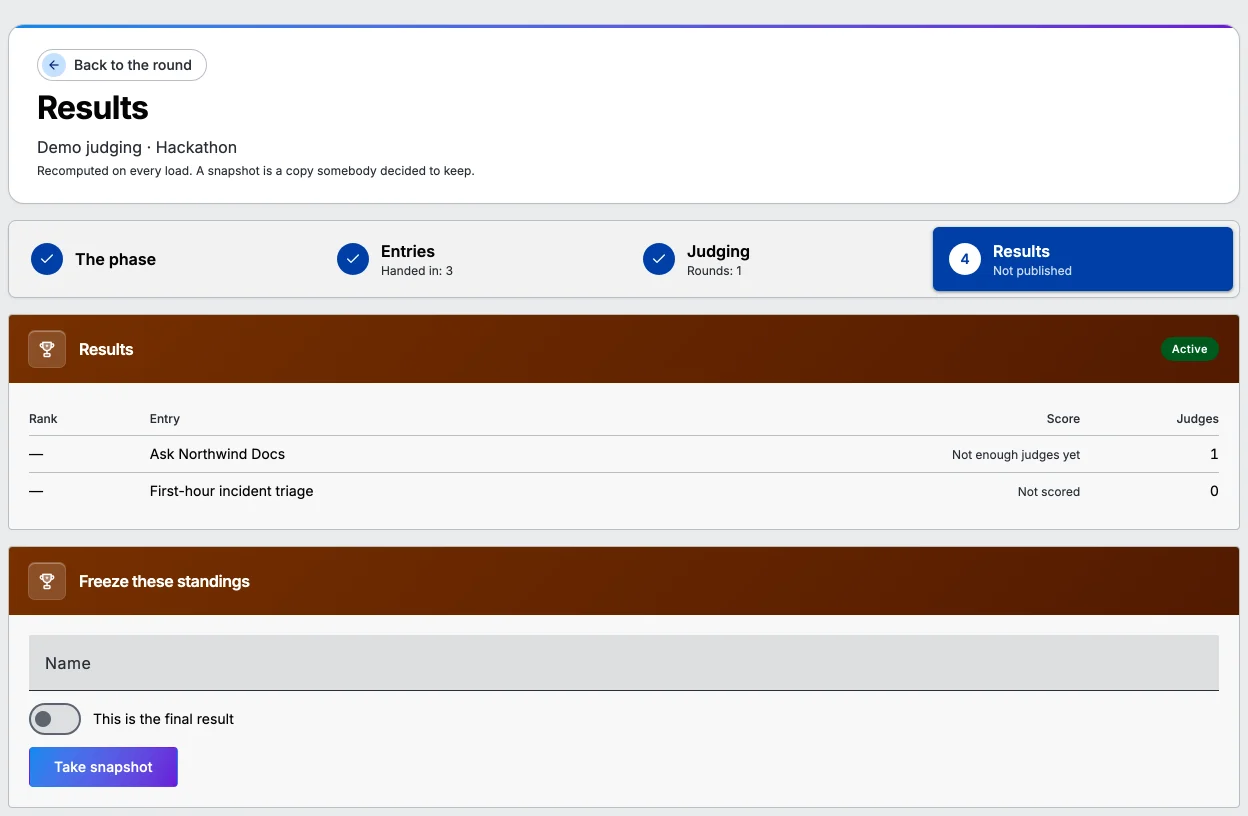
Results in the strip shows the live standings, recomputed on every load. Scores are normalized per criterion, weighted, then averaged across judges on a scale of 100. Only judges who have scored every criterion count. An entry shows Not enough judges yet until it has the number of judges you asked for.
Under Freeze these standings, name a snapshot and Take snapshot. Mark it This is the final result when it is. A snapshot stays private until you Publish it. Publishing shows each team its own result, tells the event's followers that results are out, and puts the standings on the event page.
What comes next
With the standings final, How an event ends covers prizes, the winners' announcement, the showcase and the pipeline. To see where accepted entries come from, read How a round runs. Judges can read How a judge works with an event.