The start of an event is when the most things happen at once: registration closes, people arrive, teams form and the first phase begins taking entries. This guide follows the Northwind Winter Hack through those first hours. It shows what HackUpon does by itself on each date, and what is left for you.
Step 1: Know the dates that matter
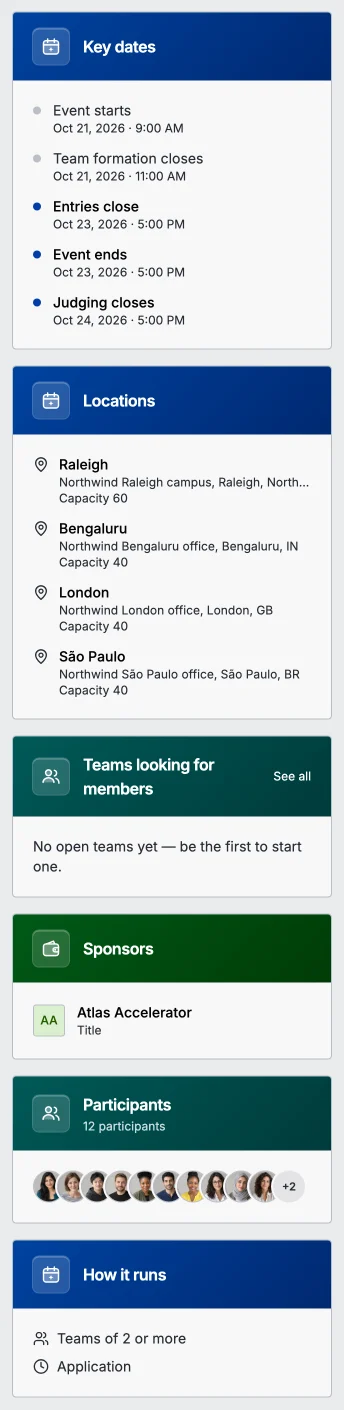
Every event page has a Key dates card, and the same dates drive what HackUpon allows. Three of them shape the start:
- Registration closes. After it, nobody new can register by themselves. An invitation still works until the event ends, and Add someone directly on Registrations still lets you bring in a late arrival.
- Event starts. The check-in desk opens, and the console's steps for the day come forward.
- Team formation closes. Unless you choose otherwise, this is two hours after the start, so the kickoff has time to form teams. After it, nobody can start or join a team.
All of them are set under Edit, in Dates and time zone, on the event's own clock.
Step 2: Prepare the kickoff in advance
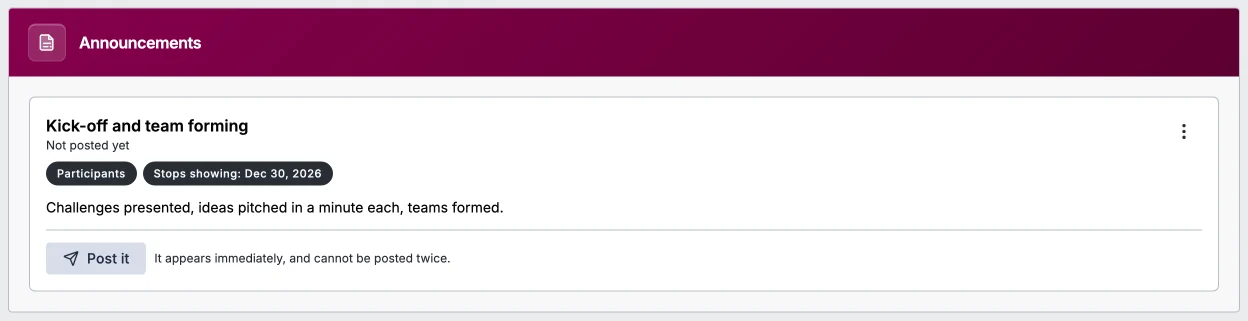
Write the kickoff announcement days ahead. On the event's Announcements, address it to participants, say when it stops showing, and save it. It waits, marked Not posted yet, until you choose Post it on the morning. Then it appears straight away on the event page, for participants only.
The kickoff itself is a session on the Schedule, with its room or its meeting link. People with a place see Join online for an online session.
Step 3: Put the countdown up
Make a link on the console's Event wall card and open it on the projector. Before the first phase, the wall counts down to its start. Once a phase is running, the wall counts down to that phase's next deadline, in the local time of the screen's location. The counts of participants, teams and entries fill in as people arrive.
The wall refreshes itself, so you can leave it running for the whole event.
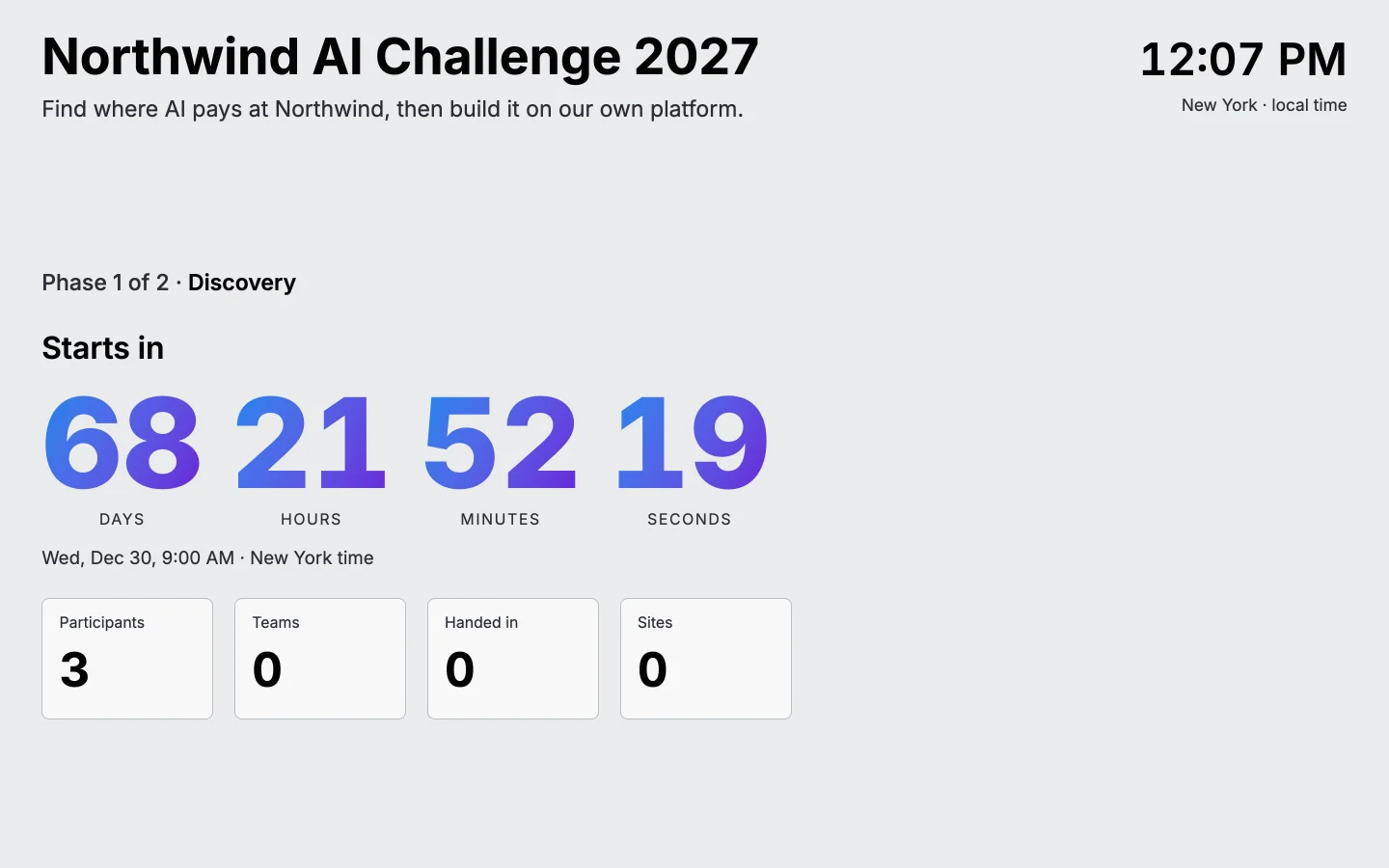
Good to know: for a bright room, add theme=light to the end of the wall's address.
Step 4: Let ideas come before teams
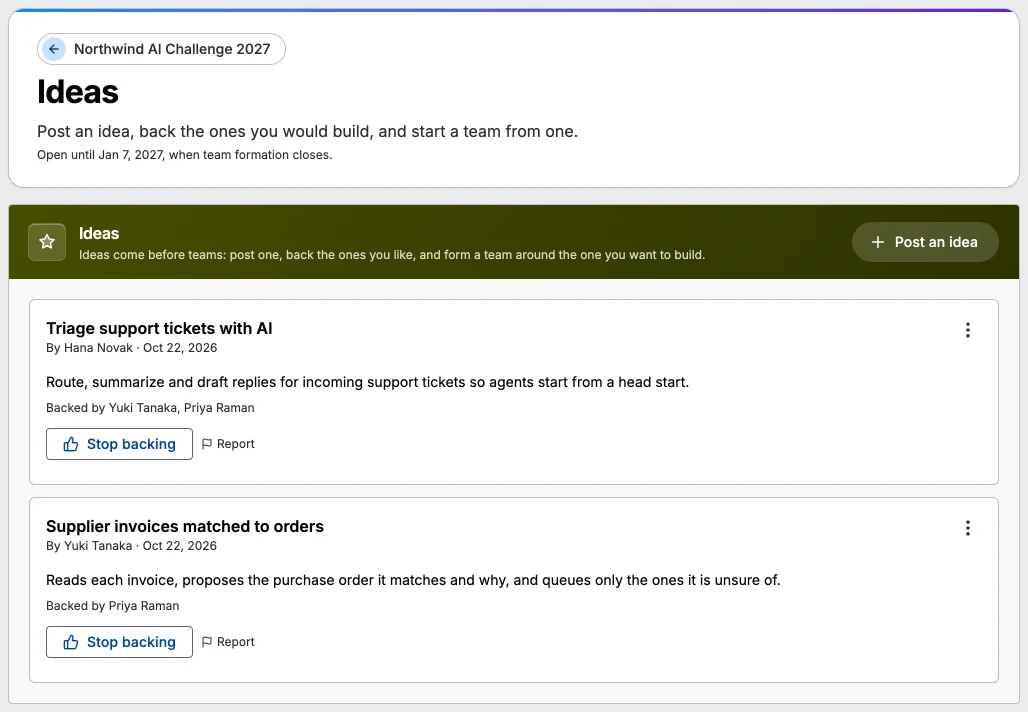
The event's Ideas board opens to everyone taking part and stays open until team formation closes. A participant posts an idea in a sentence or two, and others choose Back this idea for the ones they would build. The author can then choose Start a team from it, and the team takes the idea's name and description to begin with.
Ideas are not shown on the public event page. Only participants and the people running the event can read the board.
Step 5: Watch teams form
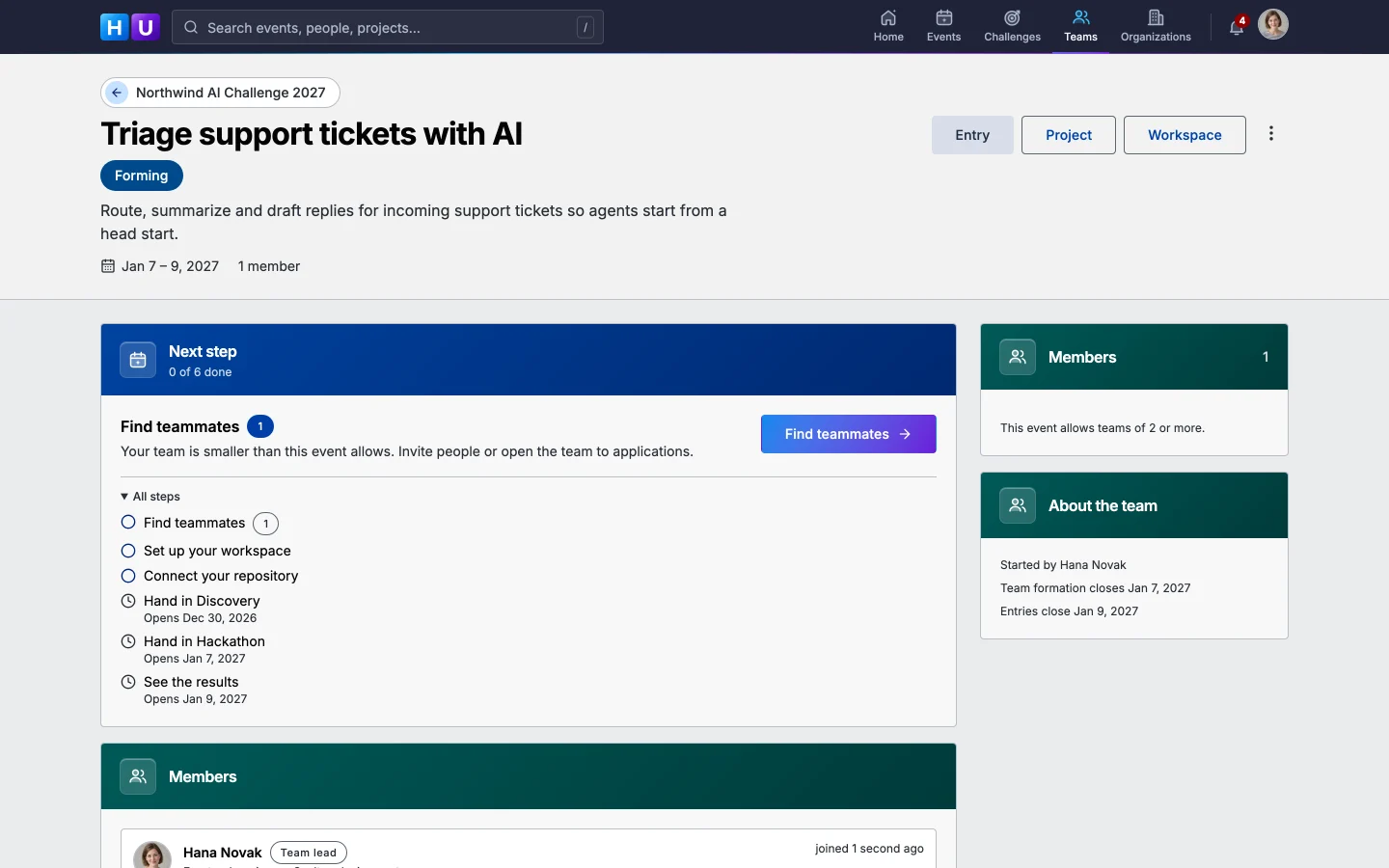
A team has a lead, its members and its own Next step panel: find teammates, set up the workspace, connect a repository, then hand in to each phase. People ask to join and the lead accepts, or the lead invites them. Team sizes follow the limits you set on the event.
Your console counts approved participants who are not on a team yet, under Help people find a team, until team formation closes. The Find a team page and the team suggestions agent are there for anyone still looking. How an organizer runs an event covers both.
Step 6: Each team gets a workspace
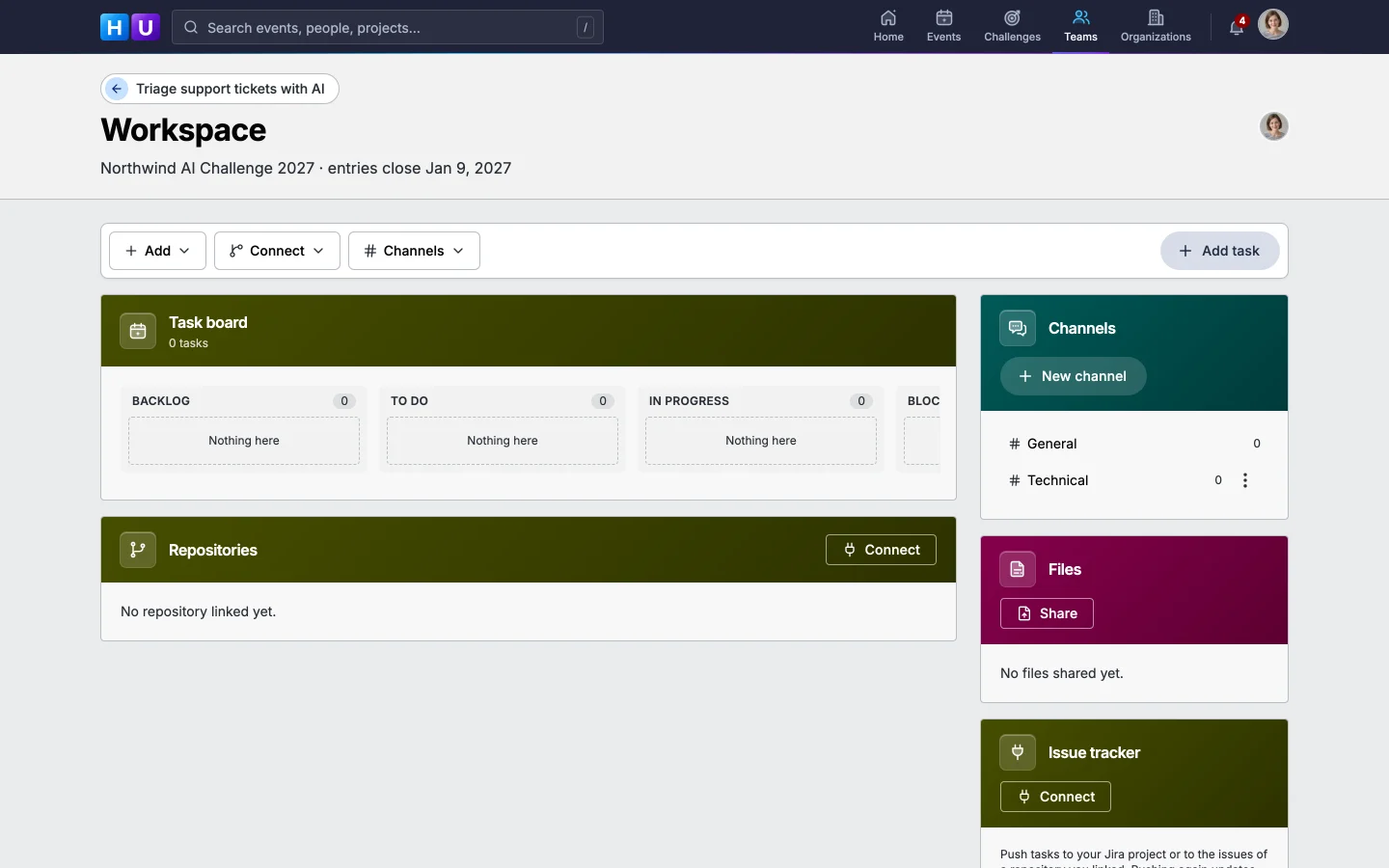
Every team can open a private Workspace with one click. It has a task board running from backlog to done, channels starting with General, shared files, and a place to connect the team's repositories, as well as its issue tracker. Only people currently on the team can open it, and organizers do not see its messages.
HackUpon only ever reads a connected repository: its commits, contributors and languages. The entry form offers the team's linked repositories, and handing in reads the chosen one again for judging. Setting up the workspace is one of the team's own next steps, so you do not have to chase it.
Step 7: Open the first phase
Each phase opens on its own dates, and HackUpon follows them without a button to press. The first phase can open before the build weekend, as a discovery week does. On the console, the Collect entries step for that phase becomes current, with a count of teams that have not handed in yet and the date it is due.
On the day, open Check-in at the desk and check people in as they arrive. Staff placed at one location see that location's people first.
Step 8: See the first entries arrive
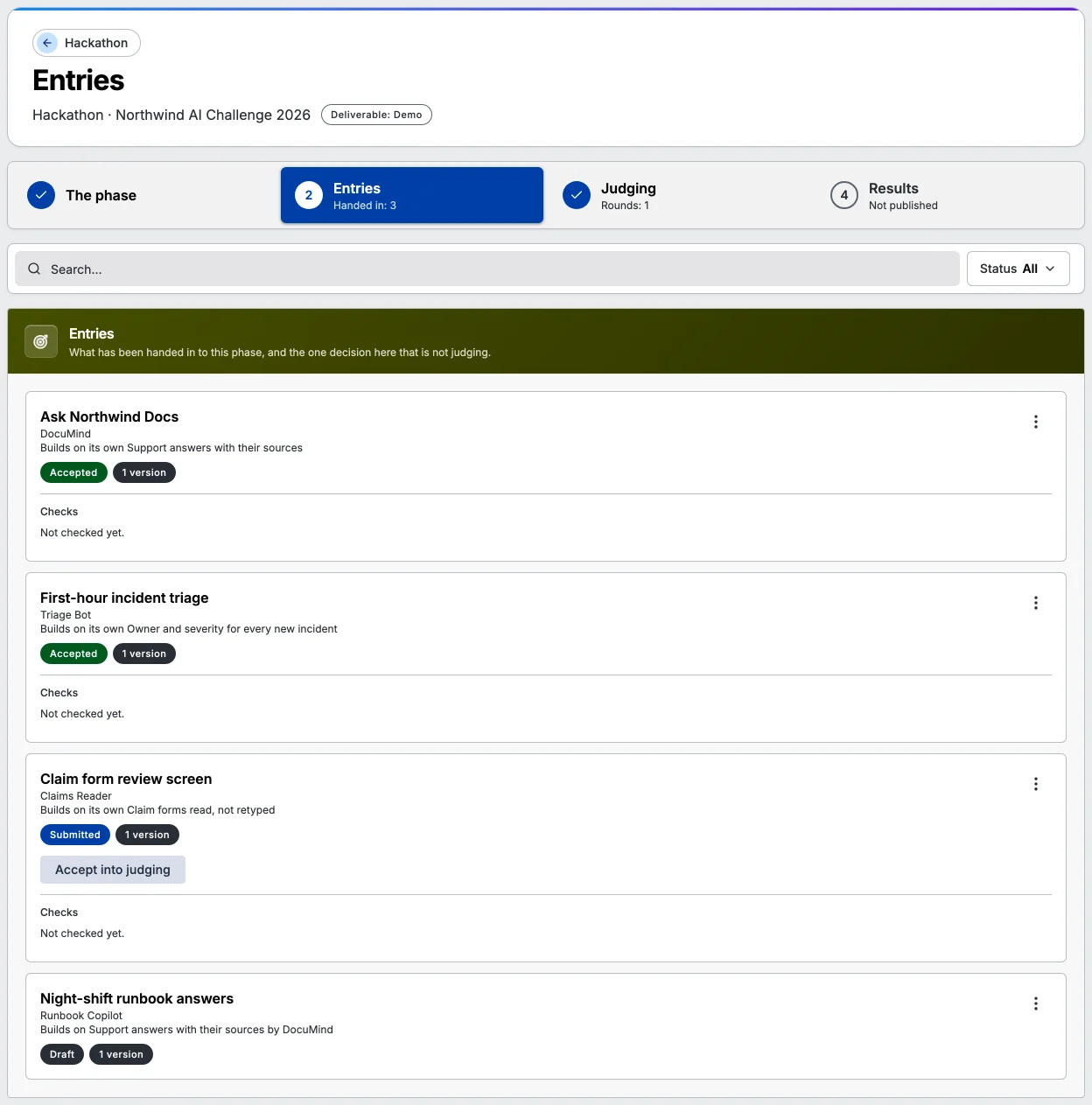
Open the phase's Entries page from its card on Phases. Each entry shows its team, what it builds on and where it stands: draft, submitted or accepted. If the phase has automatic checks, each entry is checked as it comes in, and the result is there before you decide. Accept into judging is the one decision on this page that is not judging.
The strip across the top (the phase, its entries, its judging and its results) shows how far the phase has come.
What comes next
From here, each phase runs its course: How a round runs follows the entries, checks and hand-offs, and How judging works covers the scoring. For a team's view of the same hours, read How a team takes part in an event.