The last day of an event is not the end of its work. Winners still need to be named, sponsors still need their report, and the ideas still need somewhere to go. This guide covers what HackUpon does once judging is done. Agents draft the proposals, announcements and reports along the way, and you decide what goes out.
Step 1: Close judging and publish the results
When the judges are done, open the round's Change settings and set its status to Locked or Completed. Scores stop changing, the panel is fixed, and the feedback judges chose to share is released to the teams.
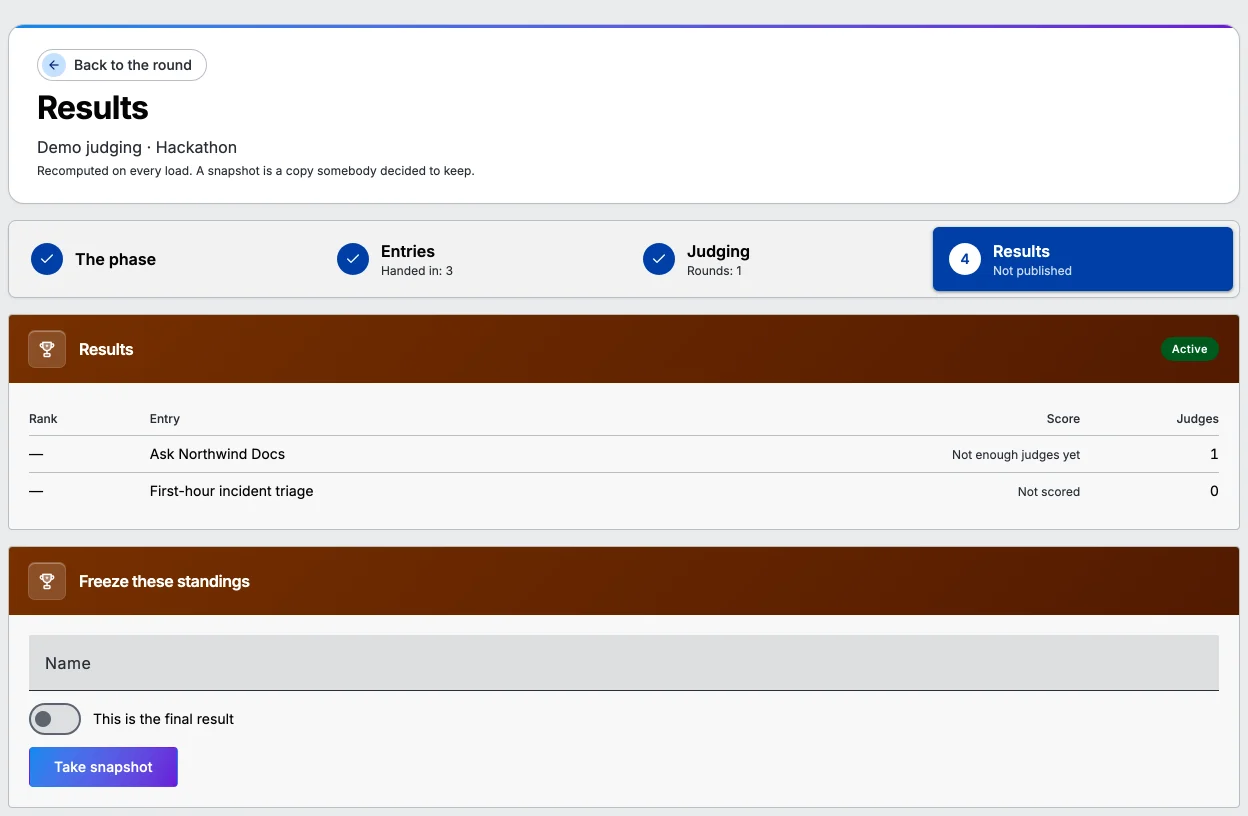
On the round's Results, freeze the standings with Take snapshot and mark it This is the final result. Publish makes it public. Each team then sees its own result on its entry, the event's followers hear that results are out, and the event page shows the standings. A round that judged a single challenge gets its own table for that challenge.
Good to know: the details of rounds, rubrics and snapshots are in How judging works.
Step 2: Give the prizes
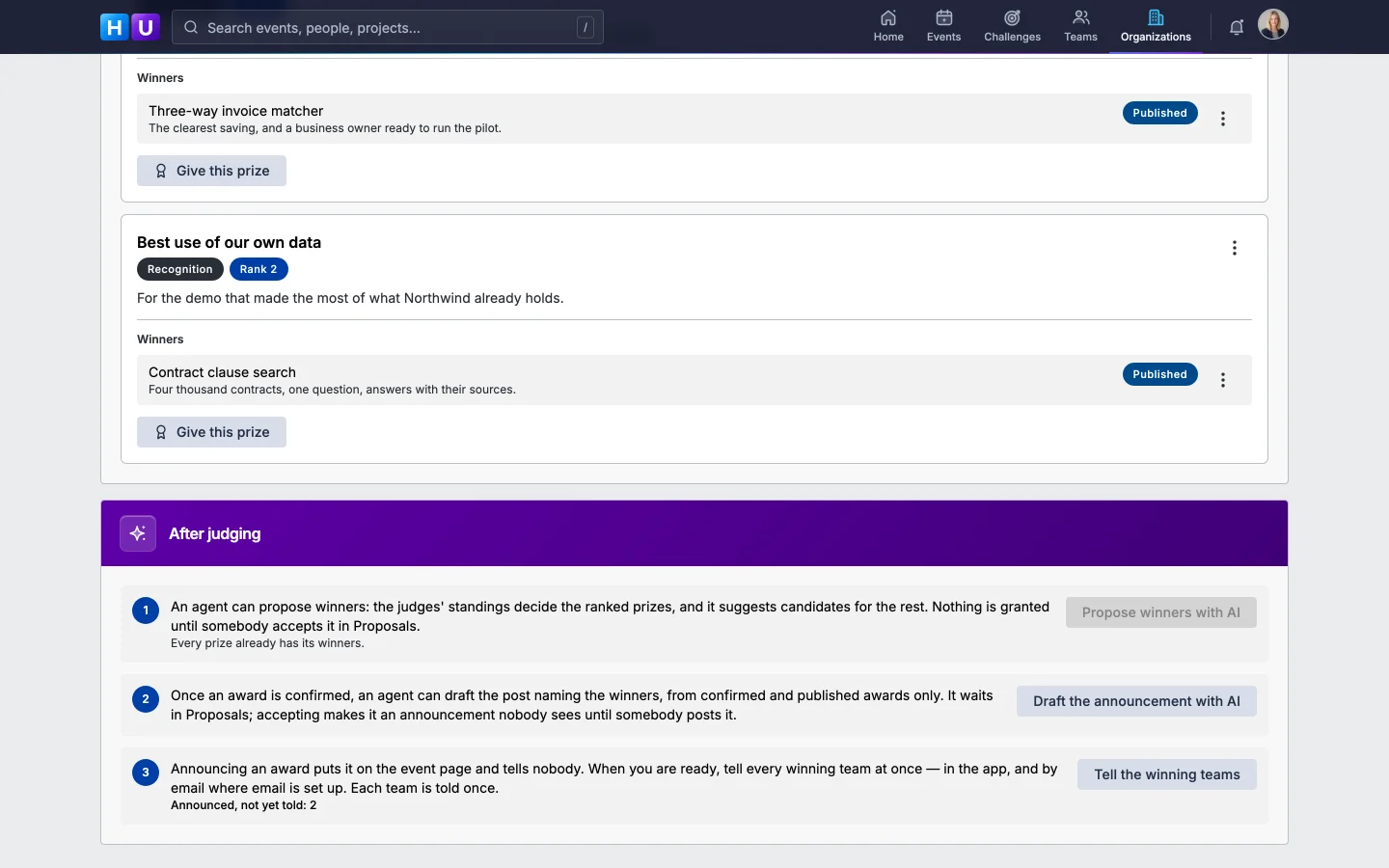
The event's Prizes page lists what the event awards: a rank, a sponsor or a challenge where they apply, and a terms document if there is one. Give this prize picks an entry and adds a citation, a sentence saying why it won.
Each award moves through three steps: proposed, Confirm, then Announce. A few rules keep the awards honest:
- Only entries accepted into judging can win.
- A challenge's prize can go only to that challenge's entries.
- An entry can hold only one place in each ranking. It can win first prize overall and first prize in a challenge, but not first and second in the same ranking.
Step 3: Let the Awards agent propose the winners
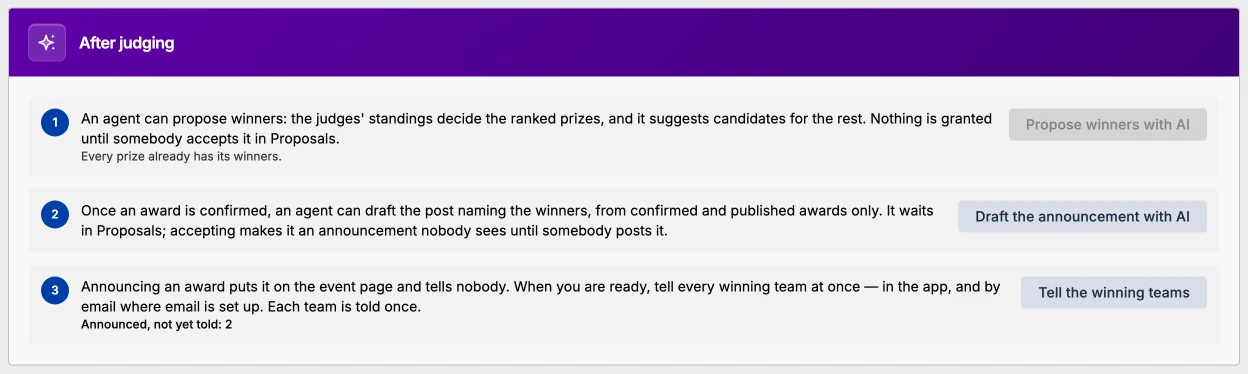
Under After judging, Propose winners with AI asks the Awards agent to propose winners. For every prize with a rank, the judges' standings decide: first place goes to the entry the judges ranked highest, and the agent only writes the citation. For a prize without a rank, such as a sponsor's pick, it suggests entries that fit and marks them Chosen by the agent, not ranked by the judges. If two entries tie for the last place, both are proposed.
Each proposal waits in Proposals. When you accept one, it becomes a pick on the Prizes page, granted by you, which you still confirm and announce yourself.
Step 4: Announce the winners
Once an award is confirmed, Draft the announcement with AI writes the post that names the winners. It uses only confirmed and announced awards, never a pick still under decision. The draft waits in Proposals. When you accept it, it lands on the event's Announcements page, unposted, for you to edit and post when you are ready.
Announcing an award puts it on the event page but notifies no one. When you are ready, Tell the winning teams notifies everyone on each winning team, in the app and by email where email is set up. Each team is told only once.
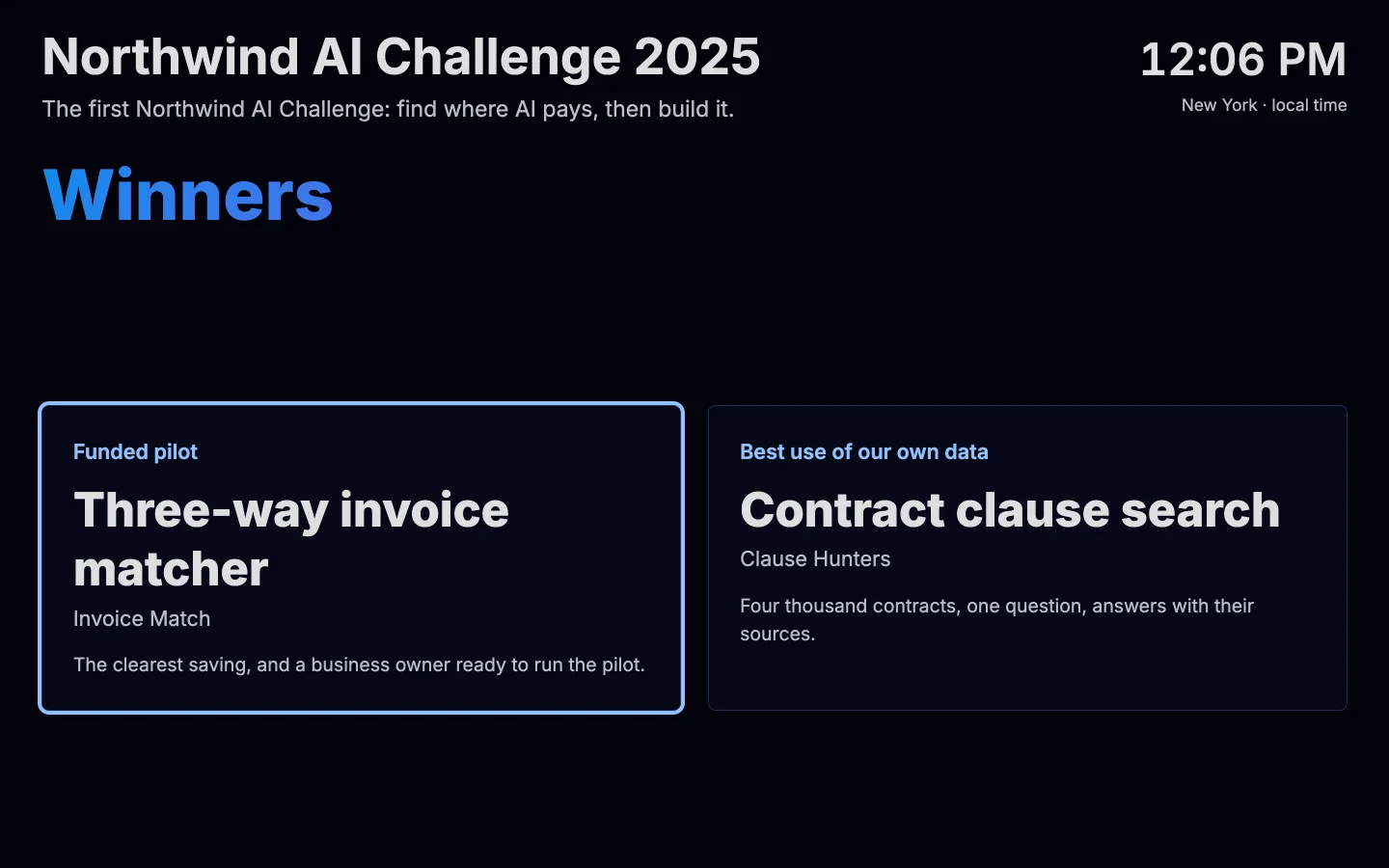
On the event wall, the projector page for each site, the winners take over the screen as soon as their awards are announced.
Step 5: Publish the showcase
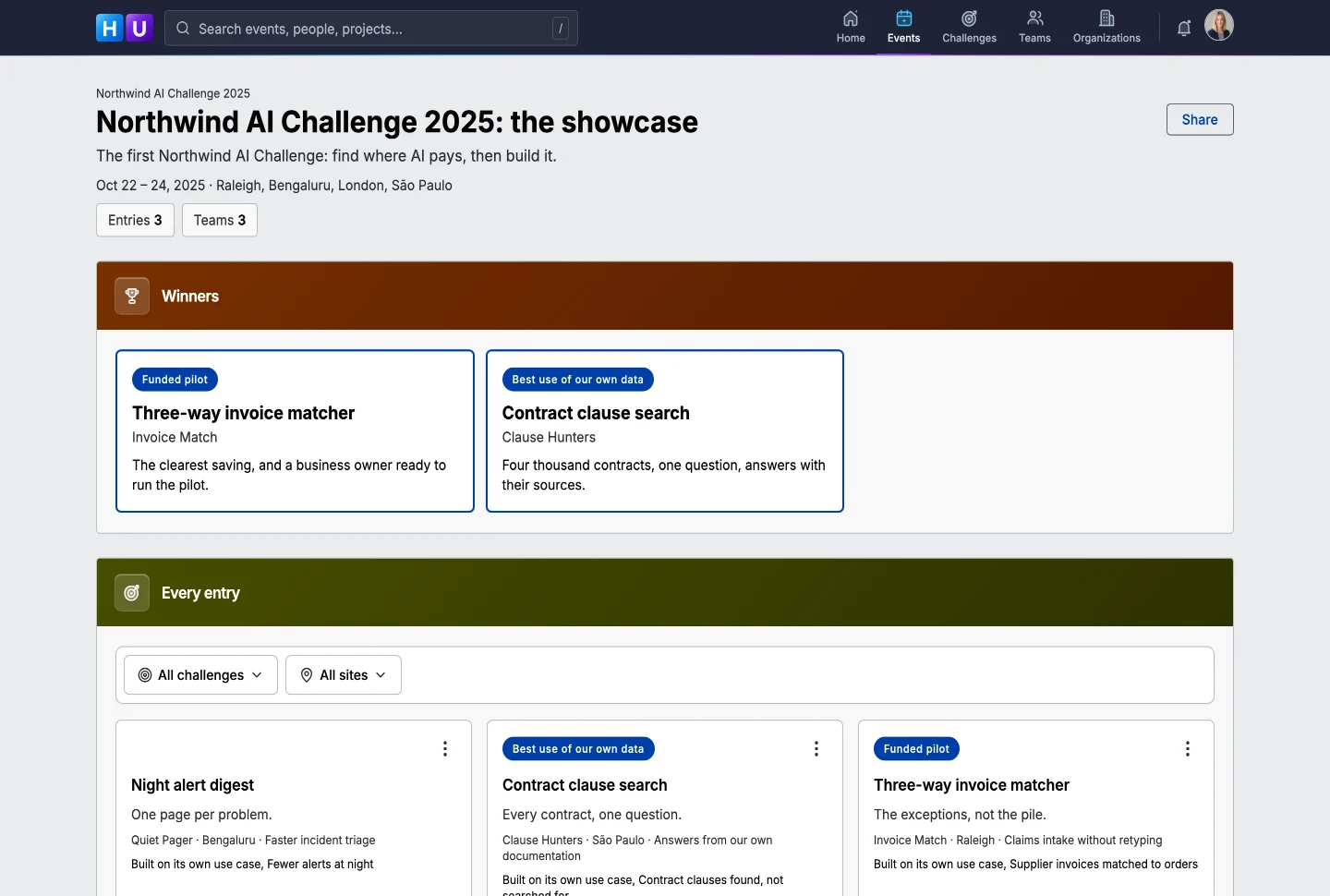
The Showcase card on the event's console page publishes a gallery of the accepted entries for participants and sponsors to share. Winners come first, with their prize badges. Every entry gets a card with its title, team, challenge and site, the use case it built on (crediting the other team when it built on someone else's), and its demo, repository and video links.
By default, the showcase shows the last judged phase. Choose others under Phases it shows, and use Hide from the showcase on any card a team asked to keep private. Publish showcase makes it public for a public event. The showcase never shows people's names or emails, scores or judges' notes.

Step 6: Report to sponsors
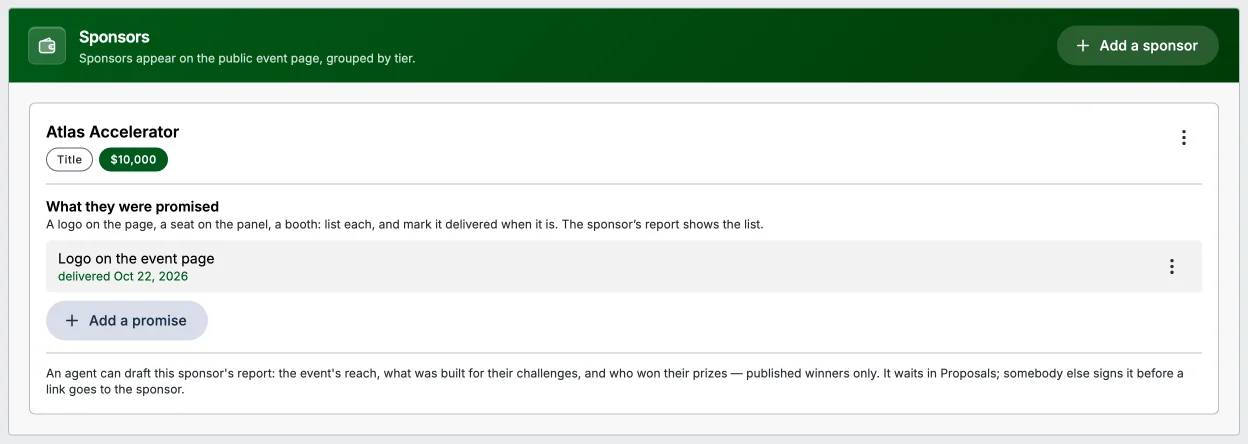
On the event's Sponsors page, list What they were promised for each sponsor (a logo on the page, a seat on the panel, a booth) and mark each one delivered when it is.
Draft the sponsor report with AI writes what the event reached: registrations, teams and entries; the sponsor's challenges, with how many teams and entries each drew and how many reached judging; their prizes and winners; and the promises, delivered or not. A winner is named only after the award is announced, and individual people are never named. The draft waits in Proposals. Someone other than its author approves it, and then you send the sponsor a share link.
For your own write-up, Analyze with AI on a draft report counts the event's figures and drafts a narrative for each section, without adding numbers of its own.
Step 7: Follow every use case through the pipeline
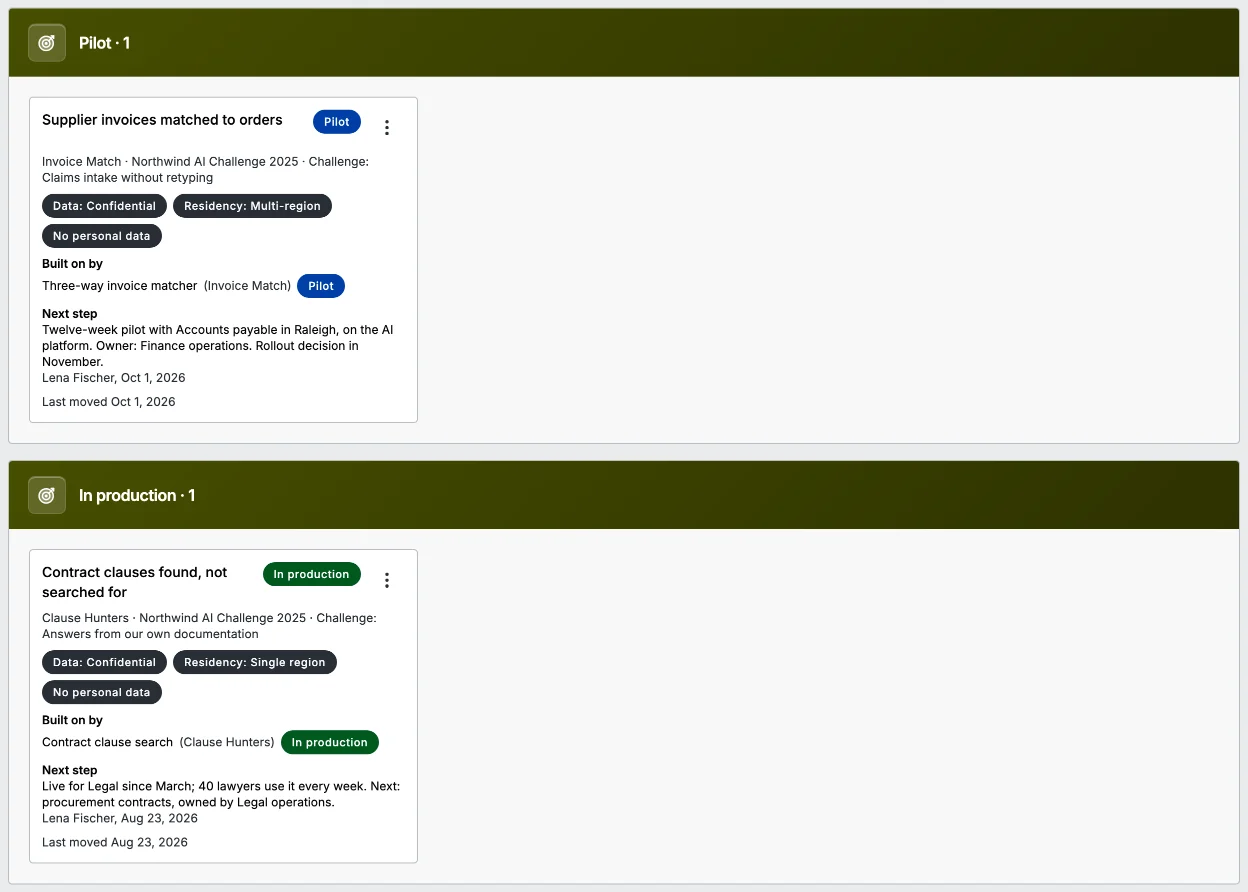
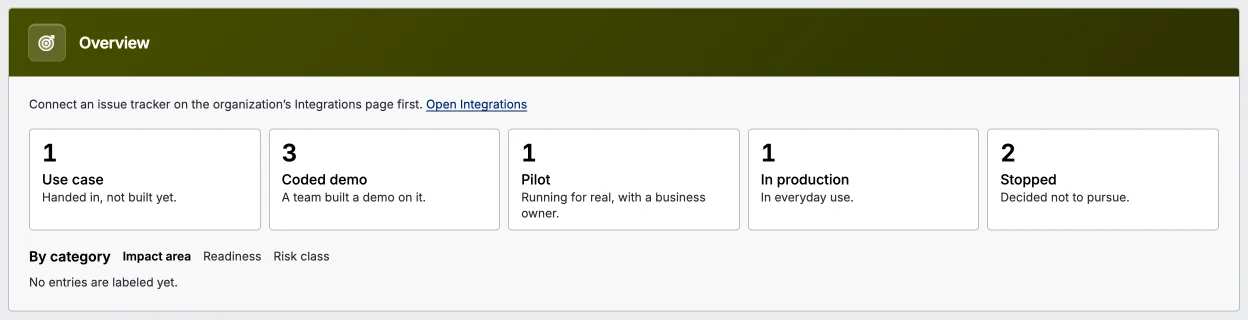
The organization's Pipeline answers the question every sponsor asks: "What happened to the ideas?" It covers every event your organization has run. Each use case handed in to a discovery phase is a card in one of five stages: Use case, Coded demo, Pilot, In production or Stopped.
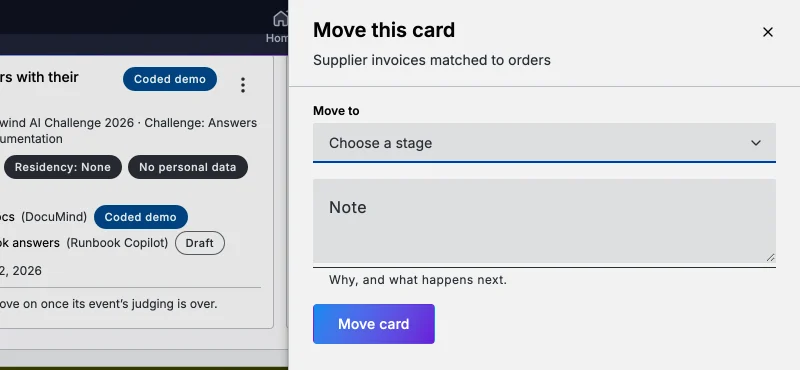
A card shows its team, event and challenge; the data sensitivity, residency and personal data the team declared; the demos built on it; and the last decision, with its note and who made it. After the event's judging is over, Move this card records the next decision, with a note saying why and what happens next. A card can move to pilot or production only if a coded demo was built on it, and any card can be stopped.
Step 8: Hand the use cases on
The counts at the top of the Pipeline are clickable, and you can filter by event and stage. Export downloads the cards you are looking at as a spreadsheet: one row per use case, with every discovery answer in its own column and a link back to the entry.
To send use cases to the team that will build them, connect an issue tracker on the organization's Integrations page: a Jira Cloud project, or a GitHub or GitLab repository. Each card then has Send to Jira, GitHub or GitLab, which creates an issue with the use case's answers and a link back. The card then shows Sent: with the issue's key. Sending the card again updates the same issue.
Step 9: Follow up on what you recommended
Some projects stall after the event. Once the event has ended, its Assessments page has Follow up with AI. The Follow-up agent looks for projects you signed off as adopt or trial that have had nothing new for two weeks: no new version and no new commit. It proposes nudges to the team and to whoever signed the recommendation. Projects you stopped in the pipeline are left alone.
Each nudge waits in Proposals and shows exactly what its recipients will read. Nothing is sent until you accept it.

What comes next
To start the next edition, see How an organizer puts together an event. Teams can see their side in How a team takes part in an event. To read about every agent that helped along the way, see the agents.