An event in HackUpon runs in phases, such as Discovery and then a Hackathon. Each phase opens, collects entries, may be judged, and then hands its work on to the next. This guide follows one phase from start to finish. By the end you will know what the phase asks teams for, what gets checked automatically, which decisions are yours, and how one phase's entries become the starting point for the next.
Step 1: Decide what the phase asks for
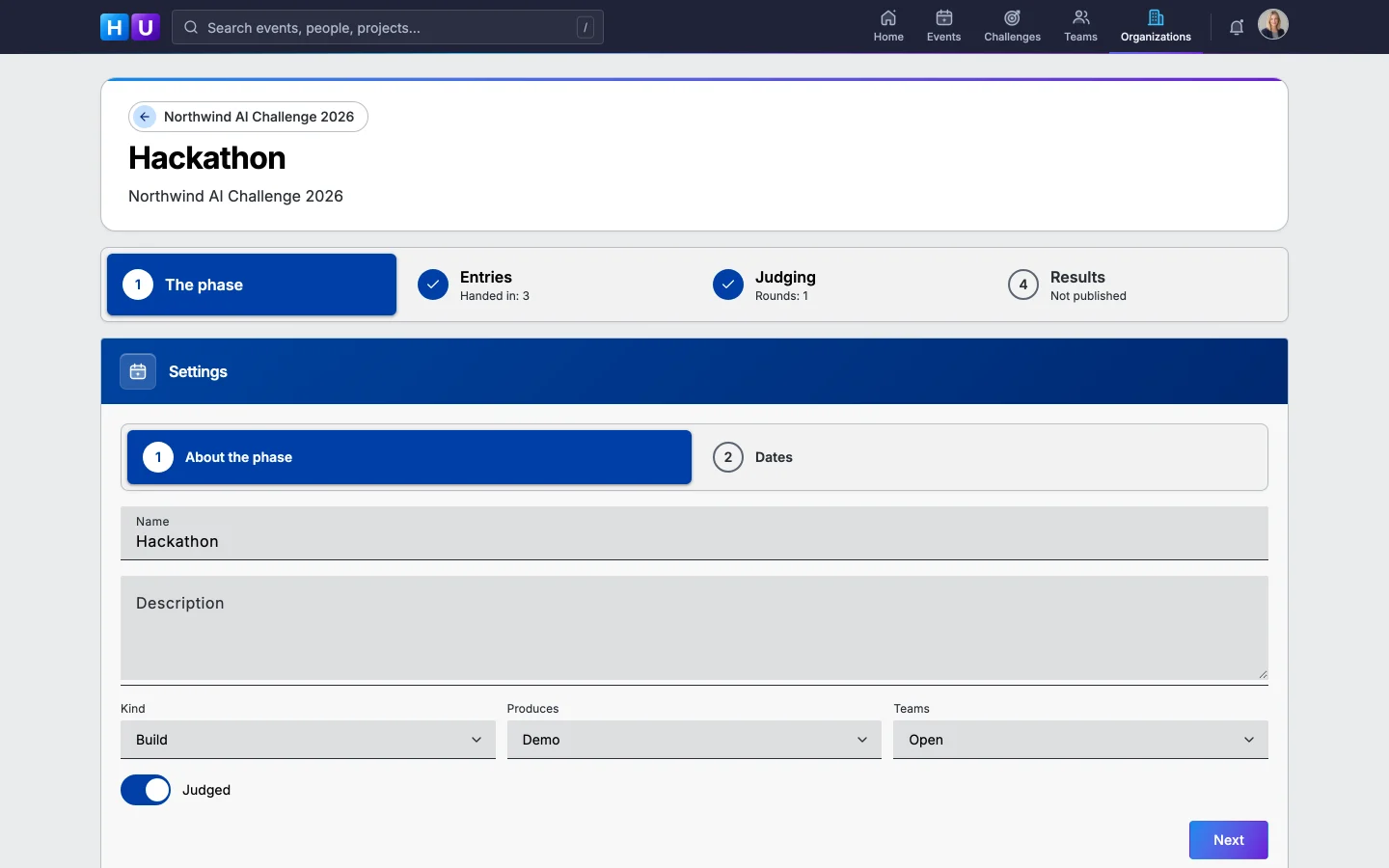
Open the event's Phases page and choose a phase. Under Settings, About the phase sets three things:
- Kind: what sort of stage this is, such as discovery, build or pitch.
- Produces: the deliverable, such as a use case, a demo or a slide deck. This decides the entry form. Each deliverable type says which fields are asked for, which are required, and which attachments (repository, video, slide deck, dataset and more) are welcome or required.
- Teams: how teams form, and whether the phase is Judged.
The questions every entry answers come from the template you started from and the innovation areas you picked, so a discovery phase can ask about data sensitivity and a build phase about what is stubbed.
Step 2: Set the window, including late entries
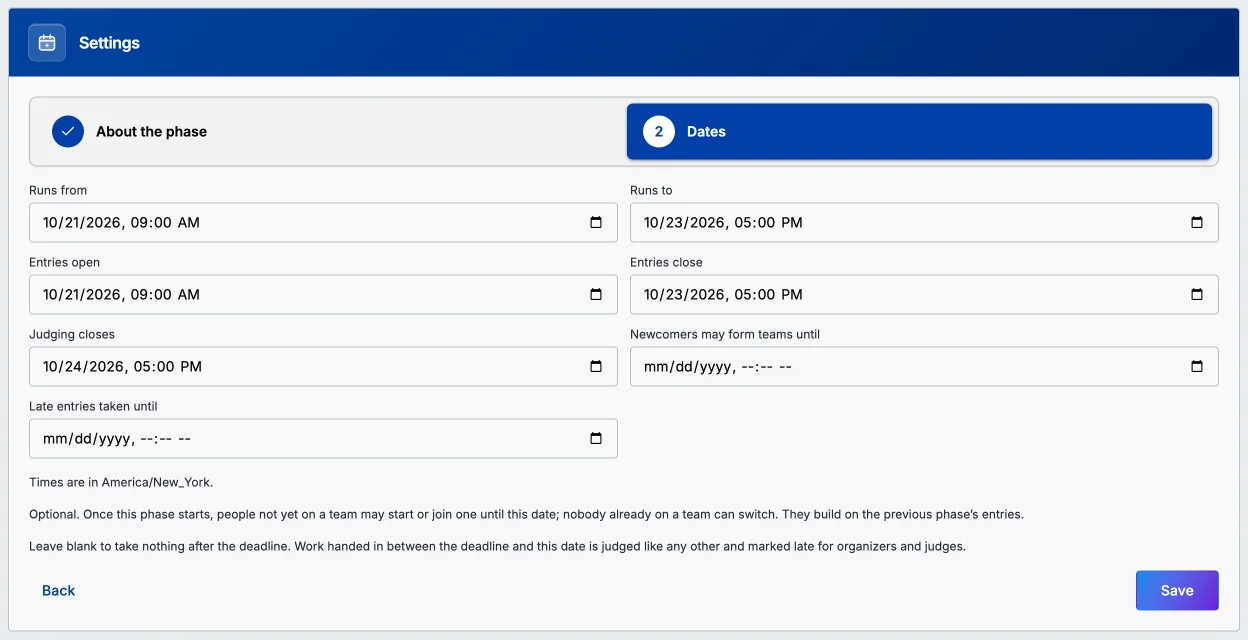
The Dates step sets when the phase runs, when Entries open and Entries close, and when Judging closes. All times are shown in the event's own time zone.
Two optional dates handle the realities of a live event:
- Late entries taken until keeps the phase open after the deadline. Work handed in during that window is judged like any other entry, and it is marked Late for you and for the judges. Leave the field blank to accept nothing after the deadline. If you move the deadline itself, that counts as an extension for everyone, and the entries it now covers lose the late mark.
- Newcomers may form teams until lets people who are not on a team yet start or join one in this phase. Nobody who is already on a team can switch.
Step 3: Choose the automatic checks
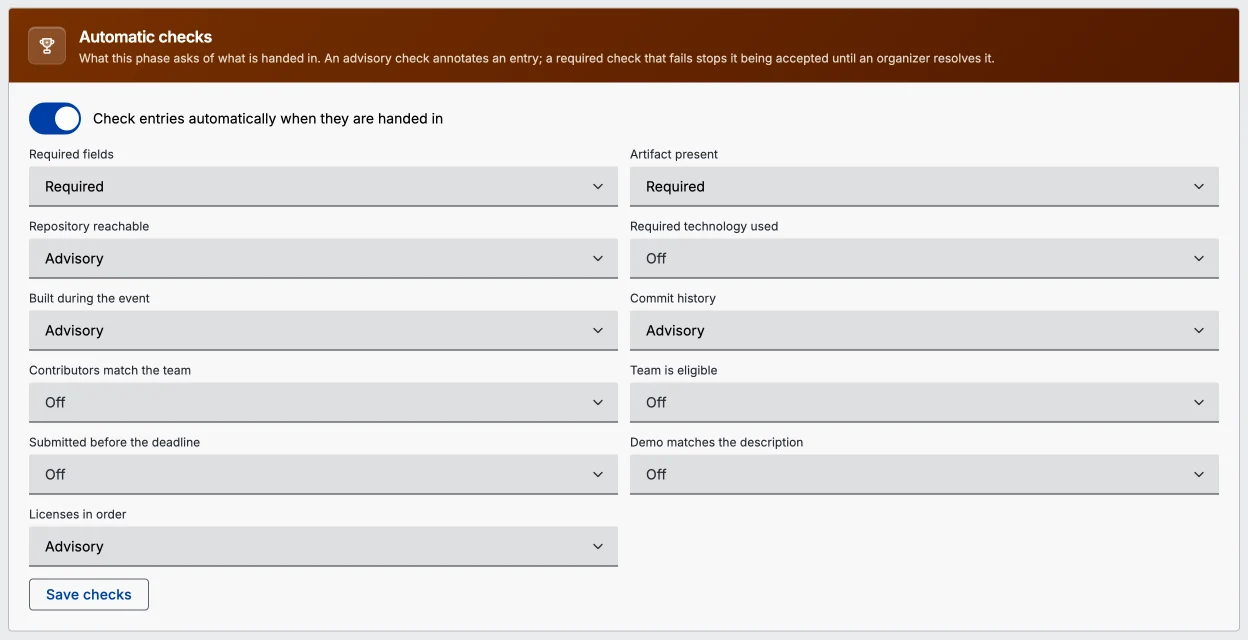
Under Automatic checks, you decide what the phase expects of each entry it receives. Each check, such as Required fields, Artifact present, Repository reachable, Built during the event, Contributors match the team or Licenses in order, can be Off, Advisory or Required.
Turn on Check entries automatically when they are handed in, and the Submission Review agent checks every entry in the background, usually within a few minutes. An advisory check adds a note to the entry. A required check that fails stops the entry from being accepted until an organizer resolves it.
Facts about a repository, such as commits, contributors and languages, are read from the repository itself. The model never guesses them. Judges never see the check results.
Good to know: the checks run only where your organization's usage limits include AI agents. You can still save the settings either way.
Step 4: Watch the entries come in
Teams draft their entries as they work. Every save keeps a version, and the team hands the entry in before the deadline (see how a team takes part). To follow along, open Entries in the phase's strip.
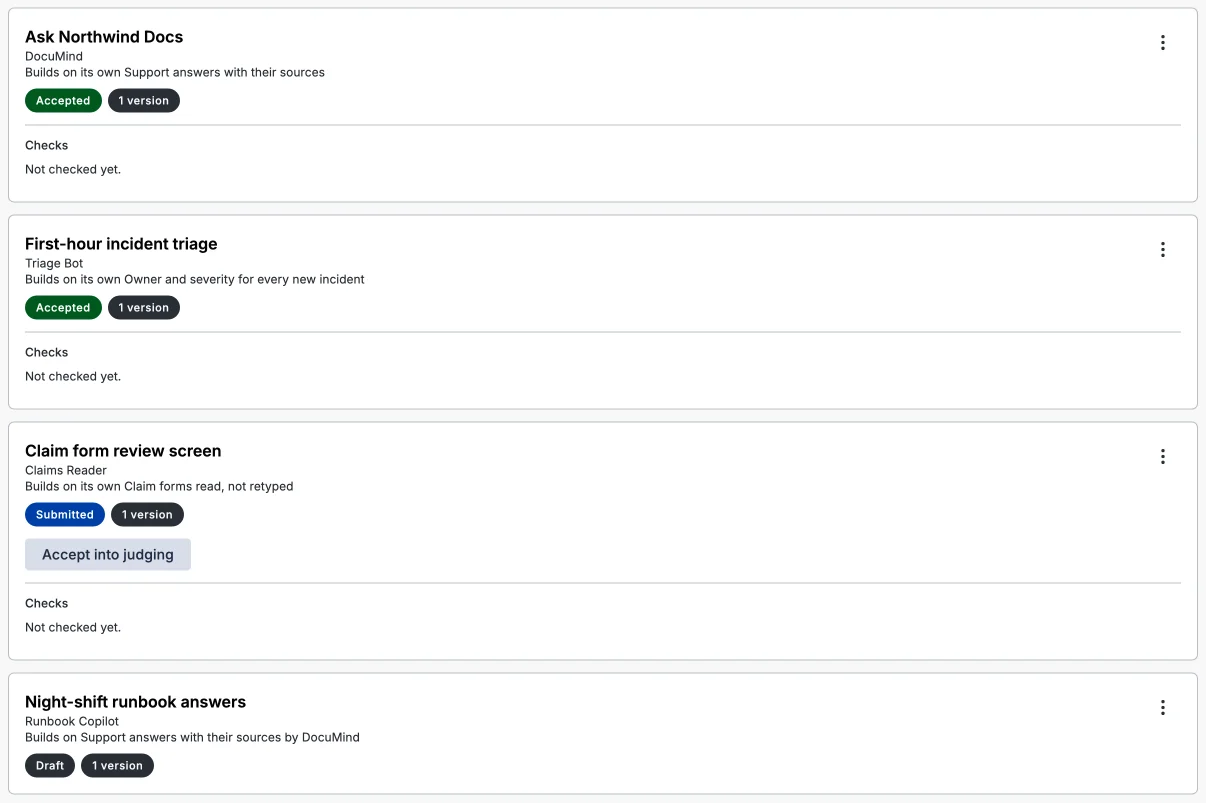
Every entry shows its status (Draft, Submitted or Accepted), how many versions it has, whether it came in Late, and what it builds on from the phase before. When checks are on, each entry lists the newest answer for each check. You can Run checks now from the entry's menu, which takes about as long as the model does. You can also Resolve a warning or failure with a sentence explaining why it is fine. Your name and that sentence stay beside the check.
Use the search and the Status filter to narrow a long list. The filtered view has its own address, so you can share it.
Step 5: Accept entries into judging
Submitted work reaches the judges only after you accept it. On a submitted entry, press Accept into judging. If a required check still has an unresolved failure, the button is replaced by a note saying how many failures need resolving.
Accepting is also the moment the judges' preparation starts. If the phase asks for briefings, the Judge Assistant writes one for the new entry (see how judging works).
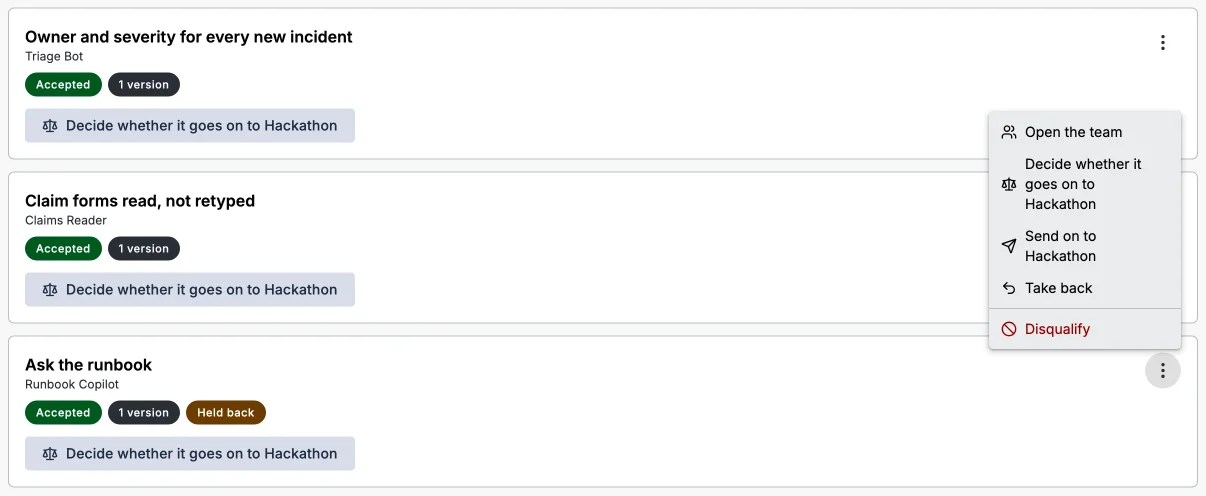
If you change your mind, Take back in the entry's menu returns it to submitted. If an entry breaks the rules, Disqualify asks for a reason, which the team can read. Reinstate reverses it later.
Step 6: Decide at the gate
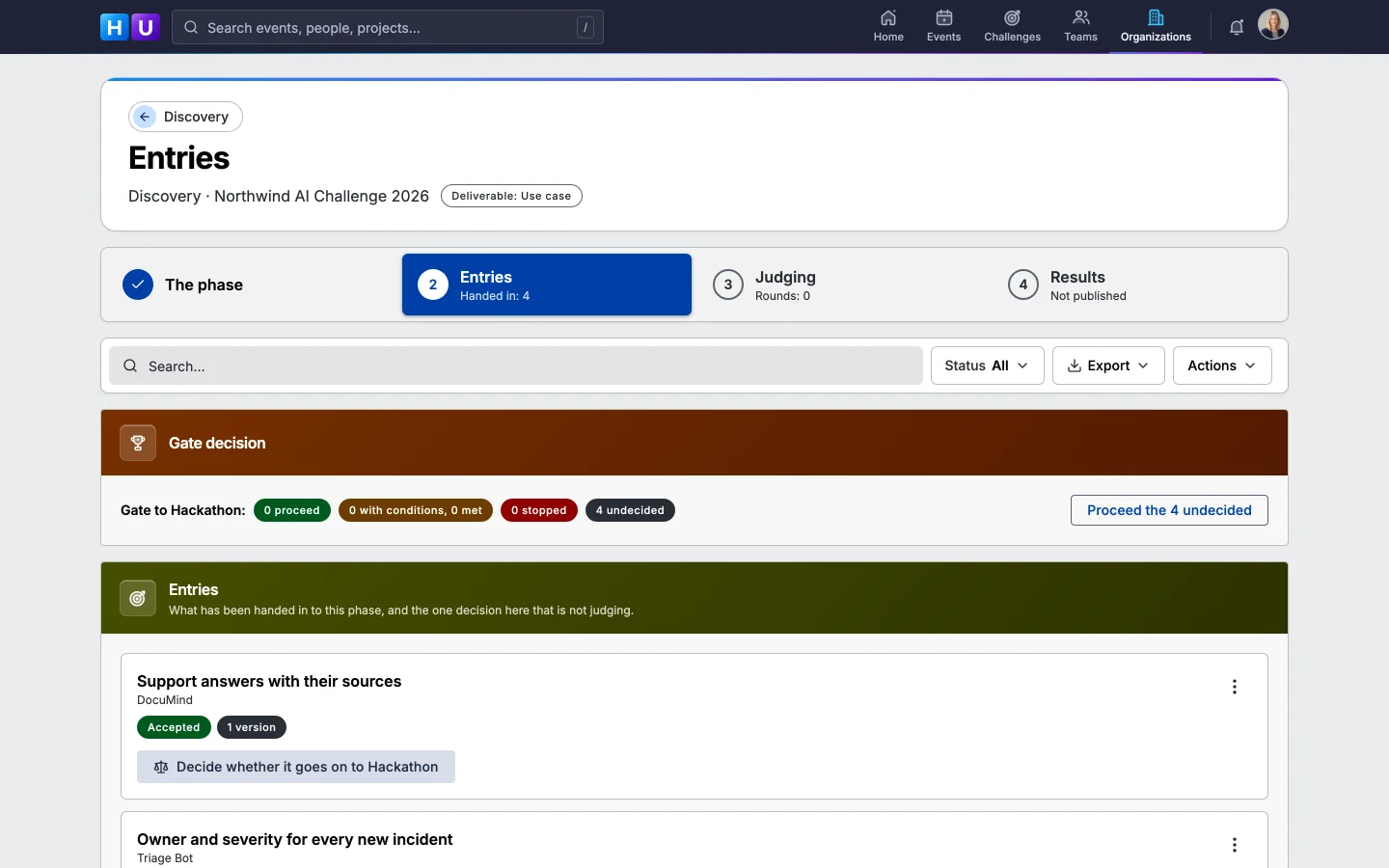
When a phase feeds another, its entries page opens with a Gate decision card. Think of it as the stage-gate review of a funnel that narrows: Gate to Hackathon: followed by how many entries proceed, proceed with conditions, have stopped, or are still undecided.
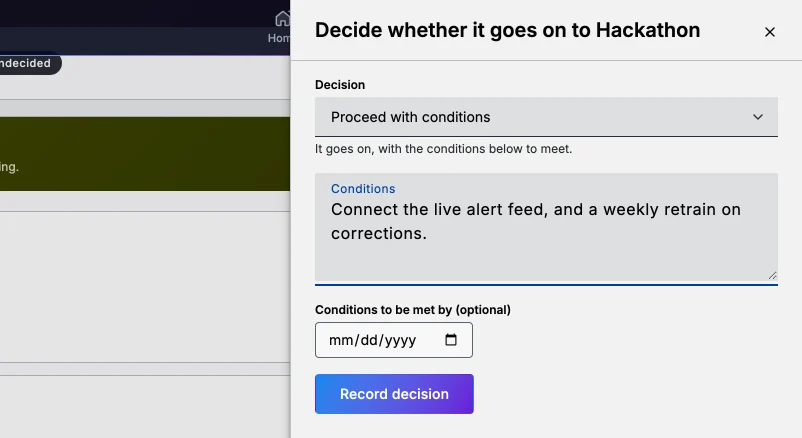
For each entry, press Decide whether it goes on to Hackathon and choose one of three decisions:
- Proceed: it goes on as it is.
- Proceed with conditions: it goes on, with conditions you write and an optional date to meet them by. Later, you can Mark conditions met.
- Stop: it does not go on. It is held back, and your reason stays on the entry.
The team is told the decision each time. When you have dealt with the exceptions, Proceed the … undecided sends everything that is left in one step.
Step 7: Hand the phase's work on
What one phase produces is what the next one builds on, whether or not the first phase was judged. Every entry that was handed in goes forward by default. To keep an off-topic entry out, choose Hold back from Hackathon in its menu. Send on to Hackathon brings it back later.
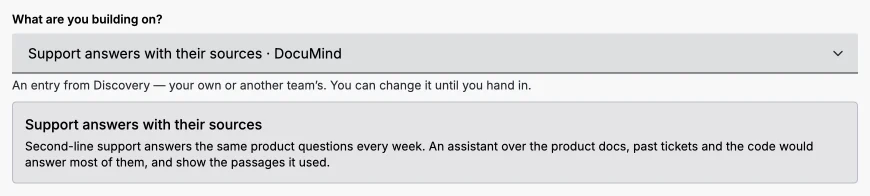
In the next phase, each team chooses what it is building on: its own entry from the phase before, which is preselected, or another team's. The team can change its choice until it hands in. When a team builds on someone else's entry, that team is told, and the entries page shows which entry it builds on, and whose.
A phase that collects use cases can also hand them on to people outside the event. Export → Download as a spreadsheet (CSV) on its entries page downloads them as a spreadsheet, one row per use case with each question's answer in its own column.
What comes next
A judged phase moves on to its rounds: see How judging works. When the last phase is done, How an event ends covers prizes, the showcase and what happens to the use cases afterward. For the days before the first phase opens, read How an event starts and How an organizer runs an event.